I've been in some weird situations in my time, but this one pushed the boat out a little further than usual.
As many of you know, I've created a Zazzle store. Originally it was to furnish monetised pictures for articles on places like Wizzley. As time has gone on, I've grown to love the site. I'm not exactly a visual person, so my comfort zone is in words. Zazzle is all pictures. Nevertheless, extra strings to my bow were added with aplomb.
Then representatives of the UK Secretary of State for Defence complained about me. Apparently. They demanded that a photograph that I'd taken of HMS Edinburgh be removed for copyright reasons. I took the photograph. It's the one pictured above.
I admit that my jaw dropped a tad, as I read the e-mail from Zazzle's Content Review Team. The products made from it had been up less than 24 hours, when the Defence Department leapt upon it. Naturally, I felt a letter to my MP and to the Rt Hon Philip Hammond coming on. They were e-mailed just now.
The precise wording, in the Zazzle e-mail, was thus:
'We have been contacted by legal and commercial
rights representatives of The UK Secretary of State for Defence, and at their
request, to remove designs which infringe upon their rights from the Zazzle
Marketplace.'
But surely, as a British taxpayer, it could be argued that I paid for HMS Edinburgh. At least, I paid my taxes and a Destroyer was added to the Royal Navy using tax revenue. I'm not saying that I could direct its manoeuvres, but there is a link here. Also as a British taxpayer, any income I receive from the Zazzle products will be taxed too. That's more money in the coffers to build military battleships!
Actually, put like that, it's probably for the best that the Secretary of State for Defence is wasting time and resources firing pot-shots at British businesses. It stops them being diverted into wars, which aren't supported by the British people instead.
I'd be interested to read the response from Mr Hammond. I'll keep you posted.
As a faintly amusing coda, another image of HMS Edinburgh, which was posted on the same day, same hour, same folder and sat right next to the one removed, was patently deemed admissible. It's still there.
A blog by an historian, Pagan and fanfiction writer, with left-wing leaning politics. In short, I could be waffling on about anything.
Showing posts with label Technology. Show all posts
Saturday, 2 February 2013
Thursday, 19 January 2012
SOPA and PIPA Strike: On the Other Side of the Darkness
On January 18th 2012, the internet went on strike. It was to protest two American bills, which could seriously threaten the basic architecture of the world wide web.
I took a grand total of nine websites, blogs, clubs and forum profiles into the protest. Some were off-line completely, while the others were redirected or otherwise censored. I wasn't alone. An estimated 7000 websites joined in the action, including Google, Wikipedia, Tumblr, Craigslist and the instigators of it all, Reddit.
Here is a photostream of just some of the sites that I saw censored during the day.
I took a grand total of nine websites, blogs, clubs and forum profiles into the protest. Some were off-line completely, while the others were redirected or otherwise censored. I wasn't alone. An estimated 7000 websites joined in the action, including Google, Wikipedia, Tumblr, Craigslist and the instigators of it all, Reddit.
Here is a photostream of just some of the sites that I saw censored during the day.
Monday, 26 December 2011
How I Stopped Search Engine Hijacking in Firefox
I love Firefox. It's my favourite browser of them all. None of the others even come close in my esteem and estimation.
Internet Explorer is just generally too clunky, slow and ridiculously open to being hacked. (I know website coders who deliberately add crap in for IE users. It's revenge for the hours of extra work that you have to do, in order for your website to display in IE.) Google Chrome is tracking everything that you do. Safari and Opera are just too unfamiliar; and none of the others have even made it onto my radar.
So when Firefox started to fail me, I pulled out all of the stops. Then I fixed it.
What Went Wrong with Mozilla Firefox?
It might be easier to tell you what went right during those horrible days. However, the very annoying things were these:
There were a few other things besides, but they were the biggies. It was patently time for drastic action. It just took me several weeks of taking drastic action (running CCleaner ad nauseam, flushing dns, updating Java, updating Foxfire, altering the host's commands, tatting in the Firefox open source code, the usual) to find the one that worked.
Preparing to Start Again with Firefox
When all hope has gone in fixing your computer in any other way, you reformat it. That really is the last resort beyond which is scrapping it and buying/building a new one. I hadn't reached that stage, but I was about to embark on the browser equivalent.
The problem was solely with Firefox. I ventured (highly temporarily!) back into Internet Explorer, where I learned that the issues with websites were all gone there. That confirmed it was the browser not the computer. I'd need to reformat Firefox.
Preparation Check List:
NB You are about to lose all of your automatically remembered passwords. If you don't think you will be able to remember them later, then go through your sites and find out or change your passwords there.
Once I'd done that, I uninstalled Firefox fully. It won't work if you merely update Firefox, or if you uninstall but leave your personal data and settings. That box needs to be ticked that removes all trace of Firefox from your PC.
Frightening, isn't it?
Using CCleaner to Remove Residual Firefox Registry Files
I've mentioned before that I can't live without CCleaner. This was another moment when it came into its own.
Once Firefox was ostensibly gone from my PC, I ran CCleaner's main cache cleaning tool. Once that was totally devoid of any gunk, I switched to their registry cleaner. It took three wipes through before all of the deep-seated registry errors were cleared, but they made very interesting reading.
My Firefox profile had some corrupt keys in there. If I had tried reinstalling Firefox now, it would have looked the same as before. CCleaner made sure that wasn't about to happen.
Once the registry error finder was returning empty, I reinstalled Firefox.
The Return of Firefox in all its Glory!
I opened up my downloads folder and found the set-up exe application, which I'd downloaded earlier. I clicked on this and went through all of the options on the wizard. Firefox was back and all of the issues were resolved.
I then took the time to import my bookmarks (same place as you exported them) and to start the rounds of downloading all of my toolbars again.
Discovering the Initial Source of the Search Engine Hijack
While doing that, I discovered something very interesting. I play Runescape, so their toolbar has been a feature of my browser for a while. After I'd navigated to their site to reinstall it, I received a pop-up (my previous Firefox had been set to not allow pop-ups, hence this hadn't shown the first time around):
Every box there had been ticked by default. That explained the initial search engine hijacking.
Everything else had probably been damaged in my attempts to remove it without access to those settings afterwards. By loading Firefox again from scratch, all of the default settings were restored. This allowed things like the javascript to run again properly.
Rediscovering the Missing Firefox Application Folder
My guess is that none of the above had hidden my Mozilla profile folder. It was more likely to be a firewall error. Perhaps there had been a dodgy file alert once, that I was too busy to explore, so I just clicked to isolate the thing until later.
Or maybe it hid itself out of terror at me employing the Hands On Imperative. Who knows?
But while I was dealing with all other annoyances, it was time to hunt that down again. That was easy enough! Just follow these steps:
Now trace back to the exact folder which isn't displaying. For myself, that was 'users'.
Happy Solstice to Me
Repairing all of this has left me with a Firefox browser which isn't annoying to use. Taking the time to really sort it out was my Yule present to myself. I'm now feeling very smug and pleased with it all again.
Happy Holidays everyone!
Internet Explorer is just generally too clunky, slow and ridiculously open to being hacked. (I know website coders who deliberately add crap in for IE users. It's revenge for the hours of extra work that you have to do, in order for your website to display in IE.) Google Chrome is tracking everything that you do. Safari and Opera are just too unfamiliar; and none of the others have even made it onto my radar.
So when Firefox started to fail me, I pulled out all of the stops. Then I fixed it.
What Went Wrong with Mozilla Firefox?
It might be easier to tell you what went right during those horrible days. However, the very annoying things were these:
- My toolbar search engine was hijacked. It was displaying results from search.insiteapp instead of Google etc.
- Javascript failed on some sites. For example, the Adwords traffic estimator tool wouldn't load.
- 404 pages redirected me to advertisement search engines.
- Watching BBC iplayer whilst playing Runescape caused a) one of them to crash or b) blue screen of death and the whole computer crashing.
- Application data folder disappearing from my files list.
- Advertisement pages opening up in separate windows, as I browsed the internet.
There were a few other things besides, but they were the biggies. It was patently time for drastic action. It just took me several weeks of taking drastic action (running CCleaner ad nauseam, flushing dns, updating Java, updating Foxfire, altering the host's commands, tatting in the Firefox open source code, the usual) to find the one that worked.
Preparing to Start Again with Firefox
When all hope has gone in fixing your computer in any other way, you reformat it. That really is the last resort beyond which is scrapping it and buying/building a new one. I hadn't reached that stage, but I was about to embark on the browser equivalent.
The problem was solely with Firefox. I ventured (highly temporarily!) back into Internet Explorer, where I learned that the issues with websites were all gone there. That confirmed it was the browser not the computer. I'd need to reformat Firefox.
Preparation Check List:
- Save your bookmarks. Top toolbar -> Bookmarks -> Show all Bookmarks. In there is an option to 'Import or Backup'. Choose to 'Export Bookmarks to HTML', then save them on your desktop.
- Make a note of your toolbars. If you're anything like me, you have toolbars from your favourite sites. Top toolbar -> Options. Write down or screenshot everything that is ticked. You'll want to restore them from source later. Download Firefox, but don't install it. Make a note where the exe set-up file has gone. If you're using Windows 7, then it'll default to your C:/ download folder.
NB You are about to lose all of your automatically remembered passwords. If you don't think you will be able to remember them later, then go through your sites and find out or change your passwords there.
Once I'd done that, I uninstalled Firefox fully. It won't work if you merely update Firefox, or if you uninstall but leave your personal data and settings. That box needs to be ticked that removes all trace of Firefox from your PC.
Frightening, isn't it?
Using CCleaner to Remove Residual Firefox Registry Files
I've mentioned before that I can't live without CCleaner. This was another moment when it came into its own.
Once Firefox was ostensibly gone from my PC, I ran CCleaner's main cache cleaning tool. Once that was totally devoid of any gunk, I switched to their registry cleaner. It took three wipes through before all of the deep-seated registry errors were cleared, but they made very interesting reading.
My Firefox profile had some corrupt keys in there. If I had tried reinstalling Firefox now, it would have looked the same as before. CCleaner made sure that wasn't about to happen.
Once the registry error finder was returning empty, I reinstalled Firefox.
The Return of Firefox in all its Glory!
I opened up my downloads folder and found the set-up exe application, which I'd downloaded earlier. I clicked on this and went through all of the options on the wizard. Firefox was back and all of the issues were resolved.
- Toolbar search engine no longer hijacked.
- Javascript running perfectly on websites it couldn't before.
- 404 pages not redirecting to advertisement sites.
I then took the time to import my bookmarks (same place as you exported them) and to start the rounds of downloading all of my toolbars again.
Discovering the Initial Source of the Search Engine Hijack
While doing that, I discovered something very interesting. I play Runescape, so their toolbar has been a feature of my browser for a while. After I'd navigated to their site to reinstall it, I received a pop-up (my previous Firefox had been set to not allow pop-ups, hence this hadn't shown the first time around):
Every box there had been ticked by default. That explained the initial search engine hijacking.
Everything else had probably been damaged in my attempts to remove it without access to those settings afterwards. By loading Firefox again from scratch, all of the default settings were restored. This allowed things like the javascript to run again properly.
Rediscovering the Missing Firefox Application Folder
My guess is that none of the above had hidden my Mozilla profile folder. It was more likely to be a firewall error. Perhaps there had been a dodgy file alert once, that I was too busy to explore, so I just clicked to isolate the thing until later.
Or maybe it hid itself out of terror at me employing the Hands On Imperative. Who knows?
But while I was dealing with all other annoyances, it was time to hunt that down again. That was easy enough! Just follow these steps:
- Open the main toolbar and select 'Help'.
- Click 'Troubleshooting Information'. (This is the stuff that geeks will need on forums, if you're ever rushing for assistance there. You're not right now, so just know that it's there.)
- Under 'Profile Directory', select 'Open Containing Folder'.
Now trace back to the exact folder which isn't displaying. For myself, that was 'users'.
- Click on the first hidden folder. (i.e. Users)
- Right-click anywhere on that page.
- Select 'Properties' from the pull-down menu.
- Untick the box saying 'hidden'. (You don't want all of the sub-folders, just the main one.)
- Press OK.
Happy Solstice to Me
Repairing all of this has left me with a Firefox browser which isn't annoying to use. Taking the time to really sort it out was my Yule present to myself. I'm now feeling very smug and pleased with it all again.
Happy Holidays everyone!
Monday, 12 December 2011
Part 6: Using Macros to Streamline your Runescape Excel Hiscores Tracker
Welcome to part six of my guide on using Excel to track your Runescape Hiscores. We've already created three tables, which record daily XP, work out your XP to the next level and determine your overall averages. This time, we will be running some macros to make them even more convenient to consult.
Please note that once you add macros into the equation, you will need to save your Excel workbook in a different mode. You'll be prompted to do this when you come to save it anyway, but the correct filename is: Excel Macro-Enabled.
Runescape Excel Hiscores Tracker: The Story So Far
This guide is written in the assumption that your workbook looks exactly like mine. For that to be the case, then you will have had to follow the previous entries. All of the data referred to and the tables created are outlined in them.
I've been asked if this could be used for other on-line games too. Yes! As long as the hiscores of that game are on a website somewhere, you can use the techniques in this guide to create a tracker for those too. If you encounter any difficulties in creating a World of Warcraft Excel Hiscores Tracker or whatever, then just comment here and I'll see what I can do to help.
But many of these tables are currently being sorted by hand. Let's change all of that by inserting a few macros!
Adding Macros to your Excel Runescape Hiscores Tracker
If you have never used macros before, then you will first have to access the tools to use them.
Did you imagine the level up fireworks then? If so, then your reward for this level is to access macros. Congrats!
Using a Macro to Sort the Data in our Runescape Hiscores Averages Table
Until now, we have been either using a sort filter or else manually rearranging the data in our Hiscores Averages table. Half the time, we might mess up and accidentally sort the wrong columns. Retyping all those formulas is a pain, isn't it? It's time to make our life a lot easier.
Congratulations! You just created your first macro. Ok, you can't see it yet, but it's saved in the background waiting for you to use. In short, Excel has just recorded actions that you took. In future, it can simply replay them.
Of course, this is no use, if you haven't got anything to press to cause it to replay.
Using a Macro to Sort the Data in our Runescape XP to Next Level Table
I had a sort filter already on my XP to Next Level Table. Before I start my macro, I'm going to remove that.
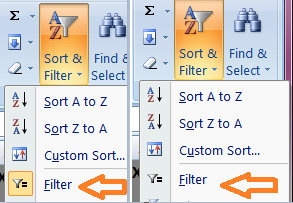
Remember that I only did that because I had a filter active on it. If you didn't, then skip the above step. It is removed when the icon beside 'Filter' isn't highlighted.
In the first image, it's active. In the second image, it's not. You want it off.
Now you just have to add a button in precisely the same way as you did before, except that you assign your latest recorded macro to it.
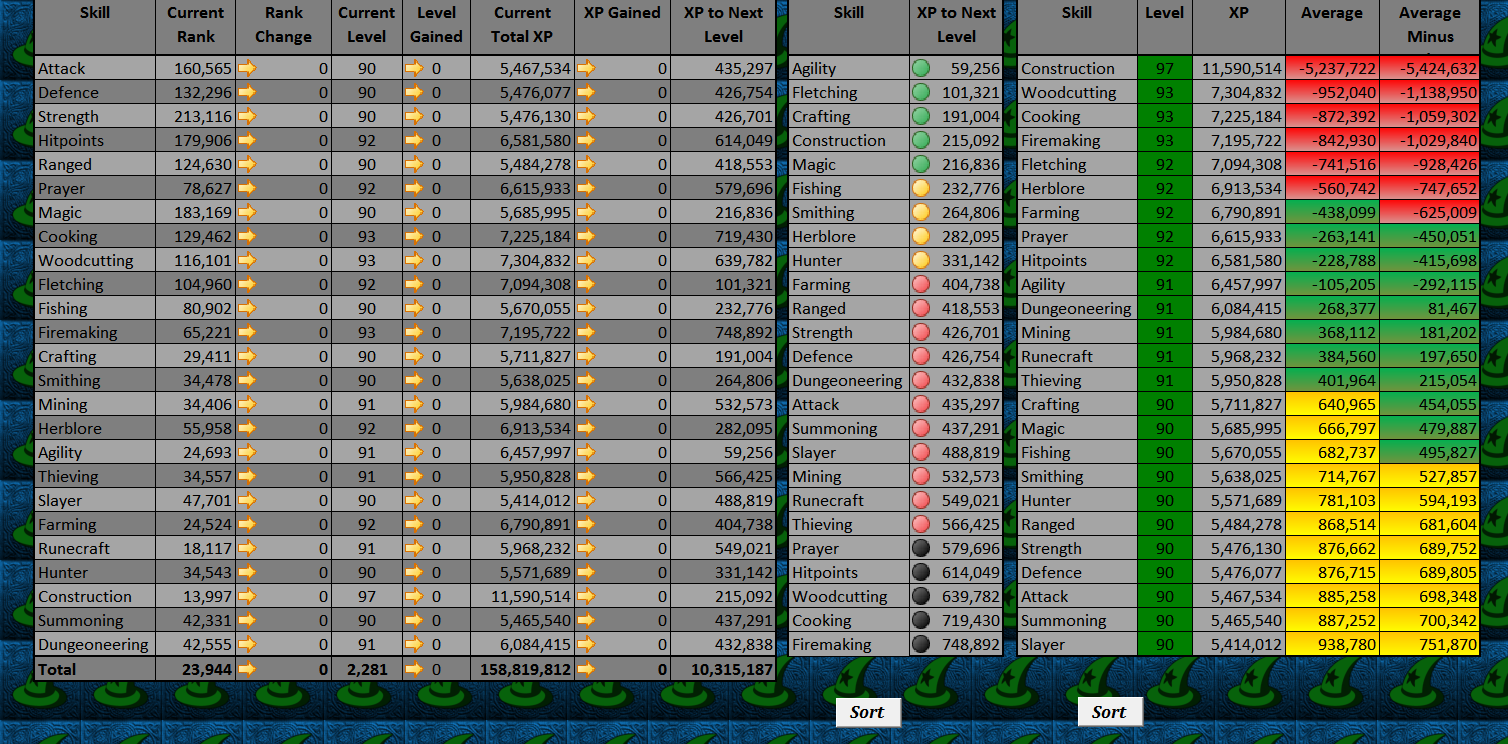
My worksheet now looks like this:
Your buttons probably look a lot more artistic than mine! LOL
Using Excel Macros to Record Yesterday's Runescape Hiscore Data
In part five, I told you that macros could be used to track your daily XP on Runescape. This is the fabled option three, which will copy data to populate columns C, D and E on your Daily Tracker.
You have now set a macro to do all of that sorting for you. You could insert a button, in the same way that you did to sort the other two tables, in you wished. However, we can make this even more automatic by asking Excel to run it for us.
Instructing a Macro to Run at a Certain Time
It is possible to ask Excel to run a macro at a specific time. This has obvious benefits for recording daily XP. It doesn't require you to remember to transfer your data.
Unfortunately there is a limitation too - the workbook has to be open at the time. For those people with enough Green awareness to switch their computer off at night, then this could constitute a problem. If you habitually play Runescape with your Excel Hiscores Tracker open, and finish at the same time each day/night, then there should be no problem at all.
This area of Excel should come with a warning saying, 'Here there be dragons'. But we're all Runescape players, so a mere dragon holds no danger. Apply a mental dragonfire shield and sip some imaginary anti-fire potion and explore the coding section of Microsoft Office Excel.
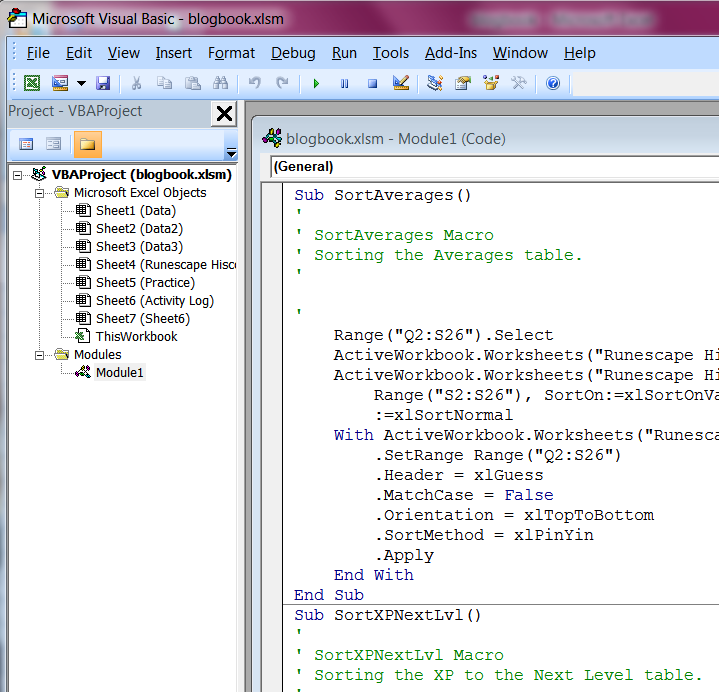
On the left-hand side, you will see two lists under the heading VBAProject and the name of your workbook. Microsoft Excel Objects individually lists all of the worksheets. Modules has all of the macros that you've recorded.
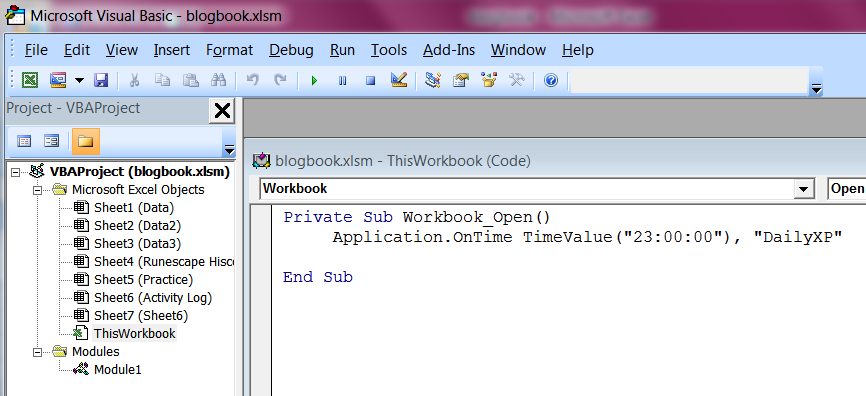
If you double-click Module1, you'll see the Sort Averages code, the Sort XP to the Next Level code and the DailyXP code. All of these were created just now, as we recorded ourselves doing them. When Excel repeats our actions, it's merely reading what's in this module. This can be edited, if you wished.
That's just for information. To set our macro to run at a certain time, we need to place a bit of code in another sheet.
We've closed the workbook because macros like these are only saved when you reopen the workbook once. Thereafter it will run without the need to close and open it again. So go ahead and do open up your Runescape Excel Hiscores Tracker again.
The code that we've inserted will cause the macro to run at 11pm every night. It takes the time from your own computer clock, so we don't have to worry about timezones here. But 11pm might not be the ideal time for you.
The part of that controlling time is ("23:00:00"). It runs in 24 hour clock - hour:minutes:seconds. If you want to change it, then open up the Visual Basic section again and double-click 'ThisWorkbook' to display the pad. Then you merely edit the time to one of your choosing.
Macros in our Excel Runescape Hiscores Tracker
There are a variety of ways in which macros can be used and set in Excel. If you can think of something else that you wish could be done automatically, then a macro can probably help. There are hundreds of websites devoted solely to walking you through macros, so just do a search to see if it's possible to do what you want to do. My recommendation is always to experiment!
I hope that you've found this section of the guide useful. Next time, I will be showing you how to add some XP and price calculators to your Runescape Hiscores Tracker.
Please note that once you add macros into the equation, you will need to save your Excel workbook in a different mode. You'll be prompted to do this when you come to save it anyway, but the correct filename is: Excel Macro-Enabled.
Runescape Excel Hiscores Tracker: The Story So Far
This guide is written in the assumption that your workbook looks exactly like mine. For that to be the case, then you will have had to follow the previous entries. All of the data referred to and the tables created are outlined in them.
I've been asked if this could be used for other on-line games too. Yes! As long as the hiscores of that game are on a website somewhere, you can use the techniques in this guide to create a tracker for those too. If you encounter any difficulties in creating a World of Warcraft Excel Hiscores Tracker or whatever, then just comment here and I'll see what I can do to help.
Part 1: How to Make a Runescape Hiscores Tracker in Microsoft Office Excel - Collecting data ready to feed your tables and charts.
Part 2: Averages Table in your Runescape Excel Hiscores Tracker - Creating the first table, which worked out your XP averages from highest to lowest skill. There was also a bonus section answering some formatting questions, mostly from those new to Excel.
Part 3: Calculating XP to Next Level in your Runescape Excel Hiscores Tracker - Creating a table to calculate the XP needed until your next level.
Part 4: Adding Activity Logs and More to your Runescape Excel Hiscores Tracker - Using the contents of websites to add data into Excel, notably a couple of ways to add your Runescape Activity Logs.
Part 5: Tracking Daily XP in your Runescape Excel Hiscores Tracker - Letting Excel calculate how much XP you had gained in Runescape today, as well as recording the levels gained and your rank changes.
But many of these tables are currently being sorted by hand. Let's change all of that by inserting a few macros!
Adding Macros to your Excel Runescape Hiscores Tracker
If you have never used macros before, then you will first have to access the tools to use them.
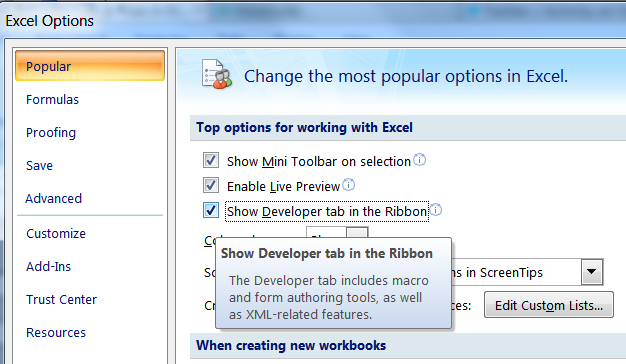
- Click the Excel logo in the top left-hand corner of your workbook.
- Click the button 'Excel Options' from the bottom right-hand corner of the pop up menu.
- Tick the box next to 'Show Developer Tab in the Ribbon'.
- Press 'Ok'.
Did you imagine the level up fireworks then? If so, then your reward for this level is to access macros. Congrats!
Using a Macro to Sort the Data in our Runescape Hiscores Averages Table
Until now, we have been either using a sort filter or else manually rearranging the data in our Hiscores Averages table. Half the time, we might mess up and accidentally sort the wrong columns. Retyping all those formulas is a pain, isn't it? It's time to make our life a lot easier.
- Open up the worksheet with your Averages Table in it.
- Click on the 'Developer' tab from the workbook's top toolbar.
- Open 'Macro Security' and select 'Enable all macros (not recommended; potentially dangerous code can run)'. The warning is correct, but we need it open before we can create one! We'll disable it again later.
- Press OK.
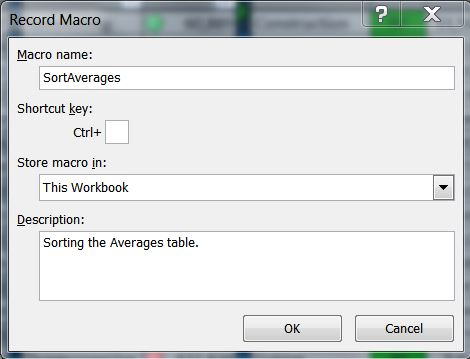
- Open 'Record Macro'.
- In 'Macro Name', type 'SortAverages'.
- Ensure that 'this workbook' is selected under 'store macro in'.
- Add a description if you want to.
- Press OK.
- Select the 'Home' tab from the top toolbar.
- Highlight cells Q2 to S26, ie the data under the skills, level and XP columns of your Averages table.
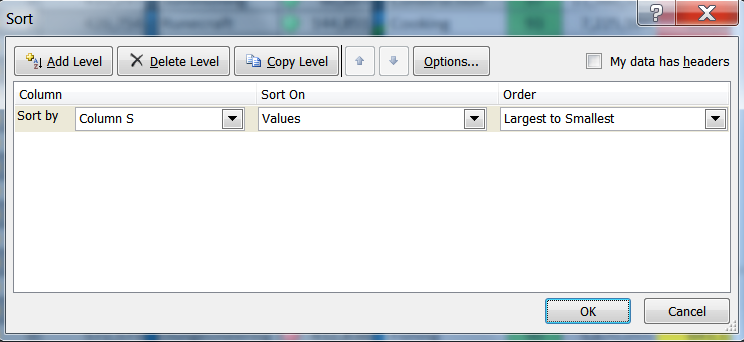
- Select 'sort and filter' from the 'Home' toolbar.
- Select 'custom sort'.
- Sort by Column S; sort on Values; order them Largest to Smallest.
- Press 'OK'.
- Return to the 'Developer' tab.
- Press 'Stop Recording' from the 'Code' category.
Congratulations! You just created your first macro. Ok, you can't see it yet, but it's saved in the background waiting for you to use. In short, Excel has just recorded actions that you took. In future, it can simply replay them.
Of course, this is no use, if you haven't got anything to press to cause it to replay.
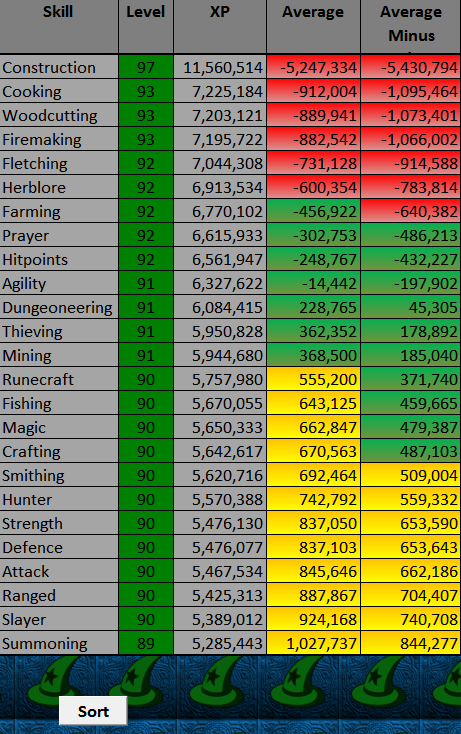
- Click the cell where you want to insert a 'Sort' button. (I'm going for cell Q30.)
- Click 'Insert' in the 'Developer' tab.
- Select an icon or button. (I'm going for the very first that you see. It's called 'Button (Form Control)'.
- Type 'Sort' on the button. (You can pretty it up in the 'Home' tab, where all of the fonts and colours are.)
- Right-click the button and select 'Assign Macro'.
- Select 'SortAverages' from the list.
- Press OK.
Using a Macro to Sort the Data in our Runescape XP to Next Level Table
I had a sort filter already on my XP to Next Level Table. Before I start my macro, I'm going to remove that.
- Highlight cells N1 to O26.
- Click the 'Sort and Filter' button on the 'Home' toolbar.
- Select 'Filter' from the pull down menu.
Remember that I only did that because I had a filter active on it. If you didn't, then skip the above step. It is removed when the icon beside 'Filter' isn't highlighted.
In the first image, it's active. In the second image, it's not. You want it off.
- Click on the 'Developer' tab.
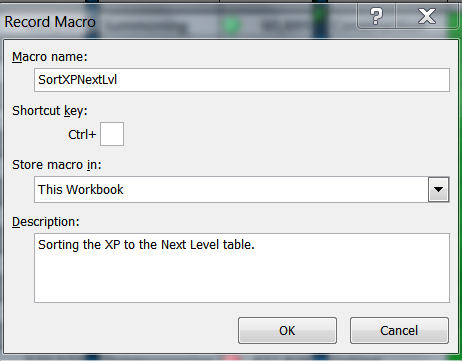
- Open 'Record Macro'.
- In 'Macro Name', type 'SortXPNextLvl'.
- Ensure that 'this workbook' is selected under 'store macro in'.
- Add a description if you want to.
- Press OK.
- Select the 'Home' tab from the top toolbar.
- Highlight the XP to Next Level table.
- Select 'sort and filter' from the 'Home' toolbar.
- Select 'custom sort'.
- Sort by Column O (XP to Next Level); sort on Values; order them Smallest to Largest.
- Press 'OK'.
- Return to the 'Developer' tab.
- Press 'Stop Recording' from the 'Code' category.
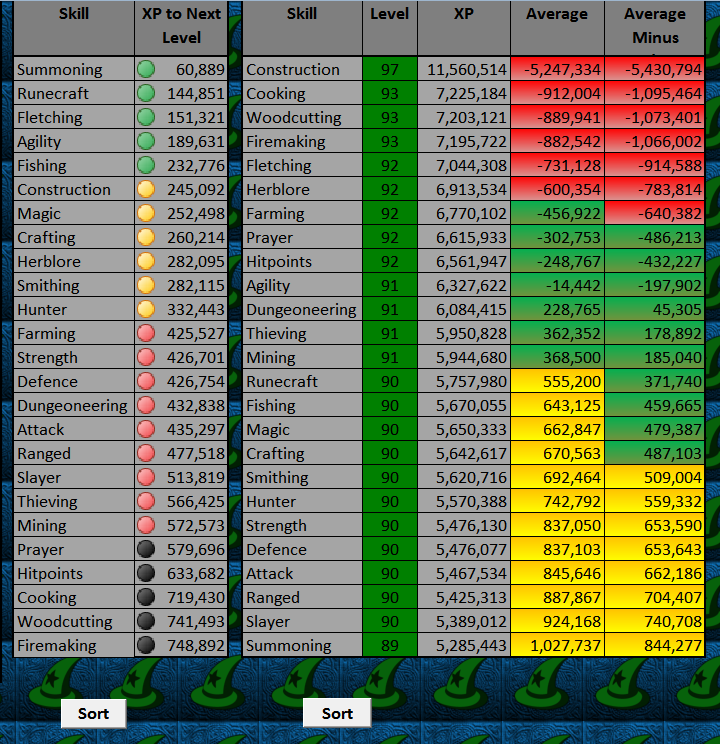
Now you just have to add a button in precisely the same way as you did before, except that you assign your latest recorded macro to it.
My worksheet now looks like this:
Your buttons probably look a lot more artistic than mine! LOL
Using Excel Macros to Record Yesterday's Runescape Hiscore Data
In part five, I told you that macros could be used to track your daily XP on Runescape. This is the fabled option three, which will copy data to populate columns C, D and E on your Daily Tracker.
- Open your worksheet with the daily tracker table on it.
- If you hid the previous data, click B and F to highlight their respective columns. Right-click and select 'unhide'.
- Record a macro, entitled 'DailyXP', of you manually transferring the relevant data. (This was outlined as Option 1 in part five.)
- Stop recording.
- Hide your columns C, D and E again. (Highlight them, right-click and select 'hide'.)
You have now set a macro to do all of that sorting for you. You could insert a button, in the same way that you did to sort the other two tables, in you wished. However, we can make this even more automatic by asking Excel to run it for us.
Instructing a Macro to Run at a Certain Time
It is possible to ask Excel to run a macro at a specific time. This has obvious benefits for recording daily XP. It doesn't require you to remember to transfer your data.
Unfortunately there is a limitation too - the workbook has to be open at the time. For those people with enough Green awareness to switch their computer off at night, then this could constitute a problem. If you habitually play Runescape with your Excel Hiscores Tracker open, and finish at the same time each day/night, then there should be no problem at all.
- Click on the 'Developer' tab on Excel's top toolbar.
- Double-click 'View Code' in the 'Controls' category.
This area of Excel should come with a warning saying, 'Here there be dragons'. But we're all Runescape players, so a mere dragon holds no danger. Apply a mental dragonfire shield and sip some imaginary anti-fire potion and explore the coding section of Microsoft Office Excel.
On the left-hand side, you will see two lists under the heading VBAProject and the name of your workbook. Microsoft Excel Objects individually lists all of the worksheets. Modules has all of the macros that you've recorded.
If you double-click Module1, you'll see the Sort Averages code, the Sort XP to the Next Level code and the DailyXP code. All of these were created just now, as we recorded ourselves doing them. When Excel repeats our actions, it's merely reading what's in this module. This can be edited, if you wished.
That's just for information. To set our macro to run at a certain time, we need to place a bit of code in another sheet.
- Double-click 'ThisWorkbook' from the 'Microsoft Excel Objects' list.
- Copy and paste the following code into the pad that pops up:
Private Sub Workbook_Open()
Application.OnTime TimeValue("23:00:00"), "DailyXP"
End Sub
- Close the Visual Basic area by clicking on the X in the top right-hand corner.
- Save and close your Excel workbook.
We've closed the workbook because macros like these are only saved when you reopen the workbook once. Thereafter it will run without the need to close and open it again. So go ahead and do open up your Runescape Excel Hiscores Tracker again.
The code that we've inserted will cause the macro to run at 11pm every night. It takes the time from your own computer clock, so we don't have to worry about timezones here. But 11pm might not be the ideal time for you.
The part of that controlling time is ("23:00:00"). It runs in 24 hour clock - hour:minutes:seconds. If you want to change it, then open up the Visual Basic section again and double-click 'ThisWorkbook' to display the pad. Then you merely edit the time to one of your choosing.
Macros in our Excel Runescape Hiscores Tracker
There are a variety of ways in which macros can be used and set in Excel. If you can think of something else that you wish could be done automatically, then a macro can probably help. There are hundreds of websites devoted solely to walking you through macros, so just do a search to see if it's possible to do what you want to do. My recommendation is always to experiment!
I hope that you've found this section of the guide useful. Next time, I will be showing you how to add some XP and price calculators to your Runescape Hiscores Tracker.
Labels:
Computer,
Gaming,
Internet,
Programmes,
Software,
Technology
Part 5: Extra: Correction and Apology
In part five of the guide, to making a Runescape Hiscores Tracker in Microsoft Office Excel, I told you to do this:
In cell I2, copy and paste the following formula: =D2 - H2
The formula was the wrong way round! Whenever you gained a level, the table told you that you'd lost one instead. Ooops! That should have read:
In cell I2, copy and paste the following formula: =H2 - D2
What can I say? I'm a noob. I've just corrected that in the original blog entry, but if you've been following this as it's published, you'll need to alter that in your Daily XP Tracker too.
Apologies for that!
In cell I2, copy and paste the following formula: =D2 - H2
The formula was the wrong way round! Whenever you gained a level, the table told you that you'd lost one instead. Ooops! That should have read:
In cell I2, copy and paste the following formula: =H2 - D2
What can I say? I'm a noob. I've just corrected that in the original blog entry, but if you've been following this as it's published, you'll need to alter that in your Daily XP Tracker too.
Apologies for that!
Labels:
Computer,
Gaming,
Internet,
Programmes,
Software,
Technology
Saturday, 10 December 2011
Part 5: Tracking Daily XP in your Runescape Excel Hiscores Tracker
Welcome to my series on how to create a Runescape Hiscores Tracker in Microsoft Office Excel!
Yesterday, I hunted penguins, then spent my points on Summoning XP. Ths involved teleporting all over Gielinor. I also converted some charms into pouches, before chipping away at some gems with my chisel. In the middle of all of this, I caught an impling or two, as they flew by me. Finally I couldn't put off the dreaded thing hanging over me in-game. I had to have another attempt at killing Vanstrom Klause.
I tooled up in Edgeville Bank, where someone optimistically asked if anyone had 97 Construction to assist him with his effigy. Yes, I did. I helped him out. Then it was off to Darkmeyer, where I accidentally hit a vyrewatch, before fleeing to the safety of the bank. I fought Vanstrom with range. He turned into mist and I threw the Holy Water. But he wasn't lured onto it and it missed. He killed me.
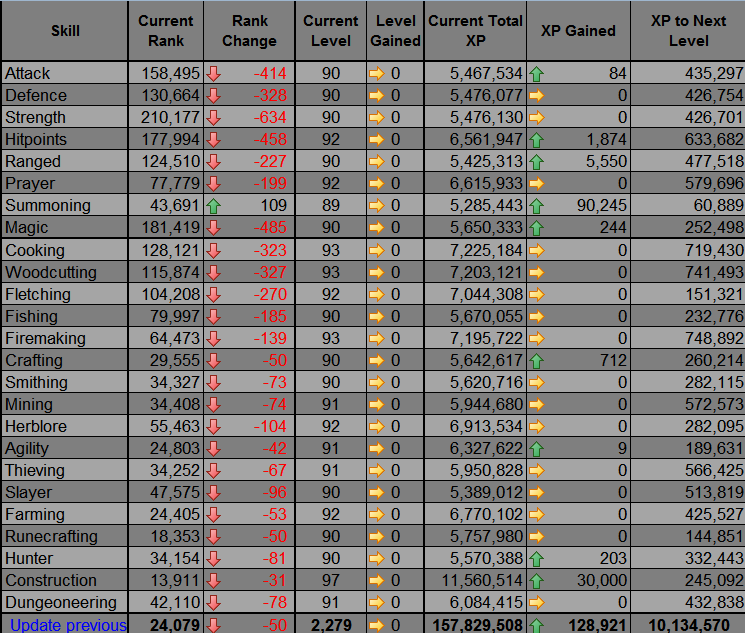
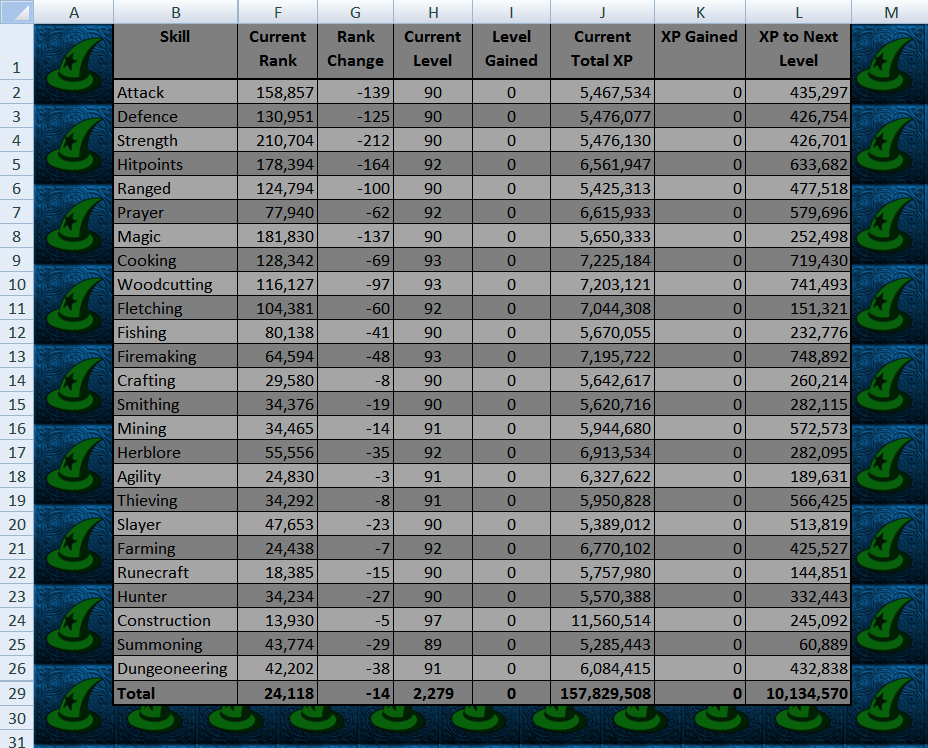
Once the dust had settled and the nerves salved, the next question was how much XP did all of that gain me? The answer was in my Excel Runescape Hiscores Tracker. Glancing down the XP Gained column retold the story of my in-game activities in cold, hard facts. I'd netted 128,921 total XP, split up across eight skills.
This is the table that I'll guide you through creating for yourself.
Runescape Excel Hiscores Tracker: The Story So Far
This guide will be written in the assumption that your workbook looks exactly like mine. For that to be the case, then you will have had to follow the previous entries. All of the data referred to and the tables created are outlined in them.
Let's get on with creating a daily XP tracker!
Building Your Table to Track Daily Runescape Experience
I want to chart my daily XP on the same page as I have my XP to Next Level and Hiscore Averages tables. There's still enough room there to see it all in one place. Before I can do that, I need to move those tables along. Skip this part, if you want to place your table in a different worksheet. Part four described how to do that.
Please click the image for a full-sized view.
Actually, I'm going to delete the background for a moment, just to make it easier to work with. Just skip this step, if you're fine.
Inserting Existing Data into your Runescape Daily XP Tracker Table
This is a big table, but you already know how to populate most of those columns. The data is in your datasheets and it's simply a case of putting in the address to display them.
My table now looks like this:
Please click on the image for a full-sized view.
Basic Mathematics in Excel Spreadsheets
The mathematically minded amongst you will now be flashing a little smile, when you learn that some of these columns are going to include just basic subtraction.
This is how my table looks now:
Please click on the image for a full-sized view.
Inserting the Previous Day's Data into an Excel Worksheet
Our Runescape Daily XP Tracker is now poised and ready, but for three important columns of data. There are three ways of doing this, so it's a matter of personal choice which one you choose.
Option One: Manually Inserting the Data
Please click the image for a full-sized view.
There is an obvious limitation here. You would have to remember to transfer your data before you started playing. The second two options will do it automatically.
Option two: Stealing the Data from Elsewhere.
The internet is full of websites which track your Runescape Hiscores data on-line. Part four was all about taking data off the internet and inserting it into your Excel spreadsheet.
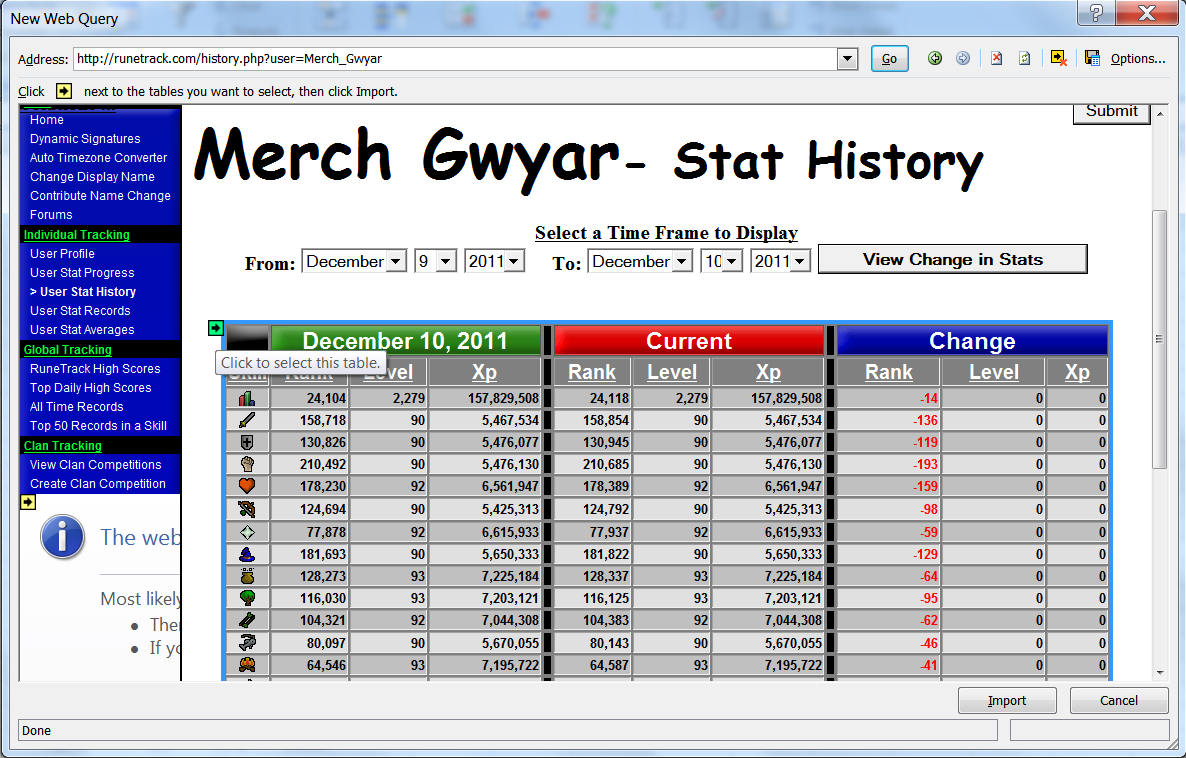
Your latest quest is to find a website that tracks your daily history. One such site is Runetrack. You could set up an account there and then insert the information off that webpage into your Excel data sheet.
Once you have the data, then it's merely a case of asking your table to automatically update. You can do that by inserting the formula: =[nameofyourdataworksheet]![celltoread]
The benefits are obvious. The whole table again automatically updates, so if you forget to tranfer your data, it doesn't matter. Your previous stats update, whenever the previous stats on the website update.
However, this isn't really fair on the individuals, like the coders and owners of sites like Runetrack. They've put in the hard work and you're reaping the benefits daily, without going near their site again.
Also should Runetrack's Sword Kill11 (or one of his counterparts from another Runescape hiscores tracking site) decide to close down, your Excel tracker will simply stop working.
Option three is to use a macro to automatically copy your data at a set time every day. I'll be coming to macros in a later guide, so I'll see you there for this one.
Finishing off your Runescape Daily XP Tracker in Excel
Once you have the data in there, and it's all working nicely, then all that remains is to make it pretty.
Because we have some moving data here, we can spruce it up with some more icon sets. I walked you through this in part three. But I'll show you how I'm going to add some to this table too.
Just repeat that for I2 to I29 (I27) and K2 to K27 (K29) and you're all done.
Here is how my worksheet now looks:
Please click image for a full-sized view.
Next time, we will finally get around to adding some macros.
Yesterday, I hunted penguins, then spent my points on Summoning XP. Ths involved teleporting all over Gielinor. I also converted some charms into pouches, before chipping away at some gems with my chisel. In the middle of all of this, I caught an impling or two, as they flew by me. Finally I couldn't put off the dreaded thing hanging over me in-game. I had to have another attempt at killing Vanstrom Klause.
I tooled up in Edgeville Bank, where someone optimistically asked if anyone had 97 Construction to assist him with his effigy. Yes, I did. I helped him out. Then it was off to Darkmeyer, where I accidentally hit a vyrewatch, before fleeing to the safety of the bank. I fought Vanstrom with range. He turned into mist and I threw the Holy Water. But he wasn't lured onto it and it missed. He killed me.
Once the dust had settled and the nerves salved, the next question was how much XP did all of that gain me? The answer was in my Excel Runescape Hiscores Tracker. Glancing down the XP Gained column retold the story of my in-game activities in cold, hard facts. I'd netted 128,921 total XP, split up across eight skills.
This is the table that I'll guide you through creating for yourself.
Runescape Excel Hiscores Tracker: The Story So Far
This guide will be written in the assumption that your workbook looks exactly like mine. For that to be the case, then you will have had to follow the previous entries. All of the data referred to and the tables created are outlined in them.
Part 1: How to Make a Runescape Hiscores Tracker in Microsoft Office Excel - Collecting data ready to feed your tables and charts.
Part 2: Averages Table in your Runescape Excel Hiscores Tracker - Creating the first table, which worked out your XP averages from highest to lowest skill. There was also a bonus section answering some formatting questions, mostly from those new to Excel.
Part 3: Calculating XP to Next Level in your Runescape Excel Hiscores Tracker - Creating a table to calculate the XP needed until your next level.
Part 4: Adding Activity Logs and More to your Runescape Excel Hiscores Tracker - Using the contents of websites to add data into Excel, notably a couple of ways to add your Runescape Activity Logs.
Let's get on with creating a daily XP tracker!
Building Your Table to Track Daily Runescape Experience
I want to chart my daily XP on the same page as I have my XP to Next Level and Hiscore Averages tables. There's still enough room there to see it all in one place. Before I can do that, I need to move those tables along. Skip this part, if you want to place your table in a different worksheet. Part four described how to do that.
- Open up the worksheet with your tables in it.
- Highlight the first column by clicking on the 'A'.
- Right-click anywhere in that column.
- Select 'insert' from the pull-down menu.
- Repeat that until the 'Skill' column of the XP to Next Level table is in column N.
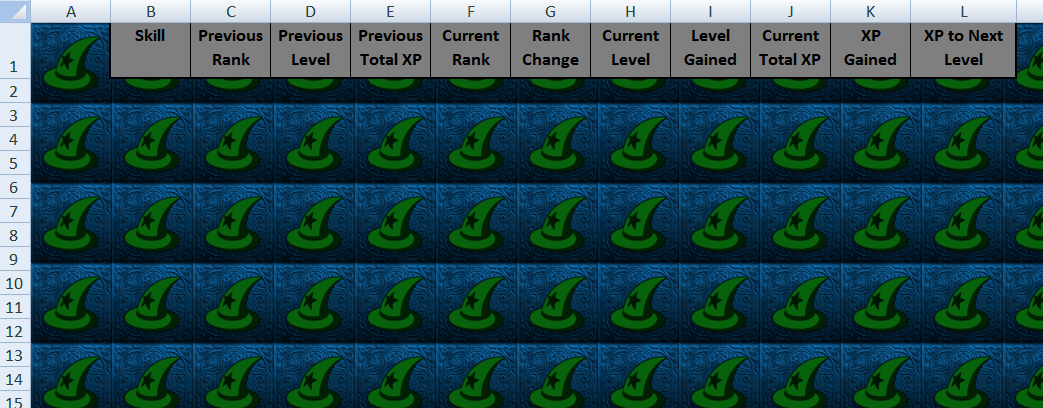
- Click in cell B1,then drag your cursor to cell L1.
- Colour and format them to match your other headers.
- In cell B1, type 'Skill'.
- In cell C1, type 'Previous Rank'.
- In cell D1, type 'Previous Level'.
- In cell E1, type 'Previous Total XP'.
- In cell F1, type 'Current Rank'.
- In cell G1, type 'Rank Change'.
- In cell H1, type 'Current Level'.
- In cell I1, type 'Level Gained'.
- In cell J1, type 'Current Total XP'.
- In cell K1, type 'XP Gained'.
- In cell L1, type 'XP to Next Level'.
- Widen any column necessary to display your headers.
Please click the image for a full-sized view.
Actually, I'm going to delete the background for a moment, just to make it easier to work with. Just skip this step, if you're fine.
- Select the 'Page Layout' tab from the top toolbar.
- Click 'Delete Background'.
- If you've removed the gridlines, select the 'View' tab from the top toolbar.
- Tick the box beside 'Gridlines', in the 'Show/Hide' category.
Inserting Existing Data into your Runescape Daily XP Tracker Table
This is a big table, but you already know how to populate most of those columns. The data is in your datasheets and it's simply a case of putting in the address to display them.
- In cell B2, copy and paste the following formula: =Data!B2 (NB: Change Data to whatever you called your data worksheet.)
- Drag the formula down to cell B26.
- In cell B29, type Total. (Rows 27 and 28 were hidden under the averages table. If you didn't hide them, then all that I say for row 29 replace with row 27.)
- In cell F2, copy and paste the following formula: =Data!G2
- Drag the formula down to cell F26.
- In cell F29 (or F27), copy and paste the following formula: = Data!G1.
- In cell H2, copy and paste the following formula: =Data!C2
- Drag the formula down to cell H26.
- In cell H29 (or H27), copy and paste the following formula: =Data!C1
- In cell J2, copy and paste the following formula: =Data!F2
- Drag the formula down to cell J26.
- In cell J29 (or J27), copy and paste the following formula: =Data!F1
- In cell L2, copy and paste the following formula: =Data!J2
- Drag the formula down to cell L26.
- In cell L29 (or L27), copy and paste the following formula: =SUM(L2:L26)
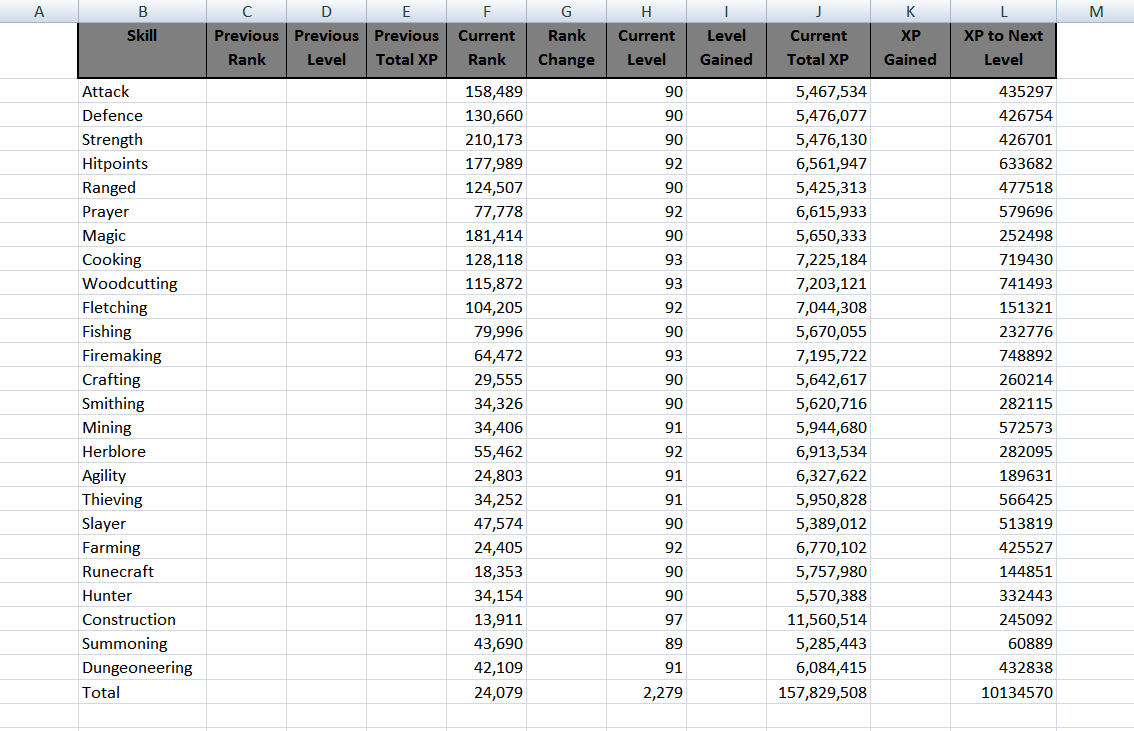
My table now looks like this:
Please click on the image for a full-sized view.
Basic Mathematics in Excel Spreadsheets
The mathematically minded amongst you will now be flashing a little smile, when you learn that some of these columns are going to include just basic subtraction.
- In cell G2, copy and paste the following formula: =C2 - F2
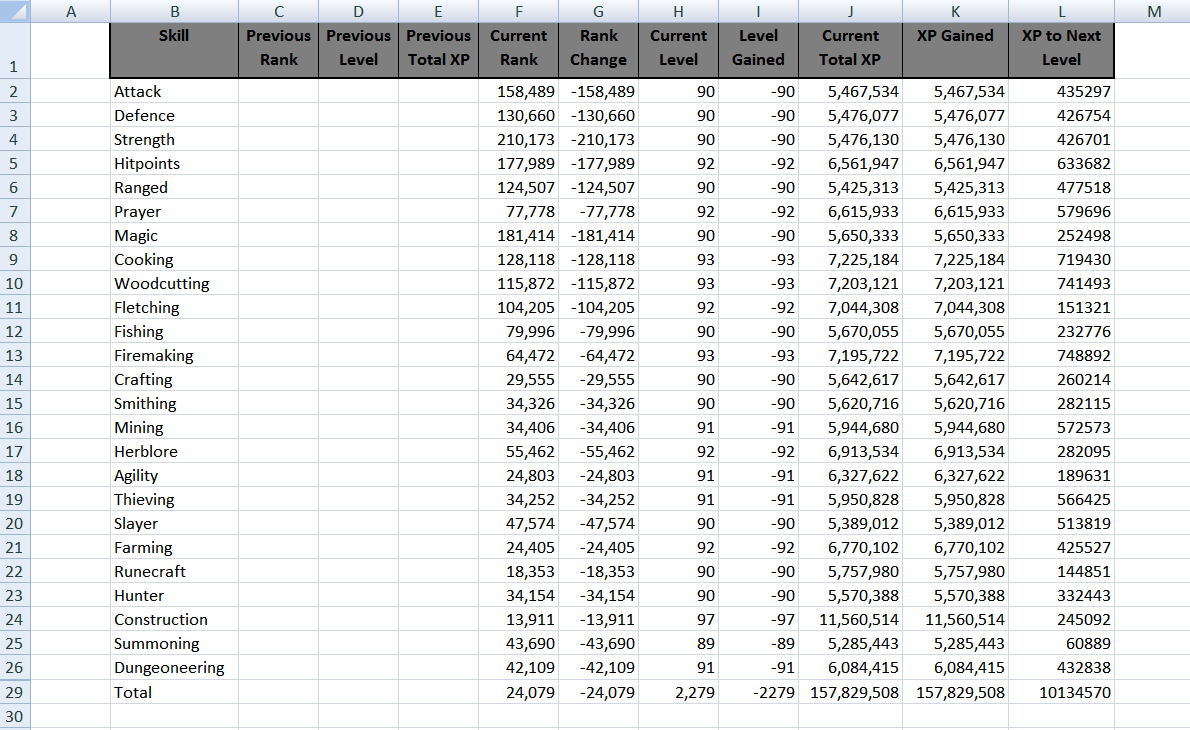
- Drag the formula all the way down to the end of your table. (It will all be in minus numbers at the moment, because we haven't got anything in column C2.)
- In cell I2, copy and paste the following formula: =H2 - D2
- Drag the formula all the way down to the end of your table.
- In cell K2, copy and paste the following formula: =J2 - E2
- Drag the formula all the way down to the end of your table.
This is how my table looks now:
Please click on the image for a full-sized view.
Inserting the Previous Day's Data into an Excel Worksheet
Our Runescape Daily XP Tracker is now poised and ready, but for three important columns of data. There are three ways of doing this, so it's a matter of personal choice which one you choose.
Option One: Manually Inserting the Data
- Highlight cells H2 to H29 (H27).
- Right-click and select 'copy'.
- Open your XP Tracker worksheet.
- Click cell D2.
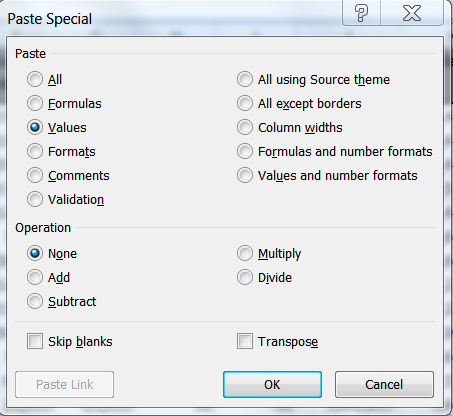
- Right-click and select 'paste special'.
- Select 'Values'.
- Press 'Ok'.
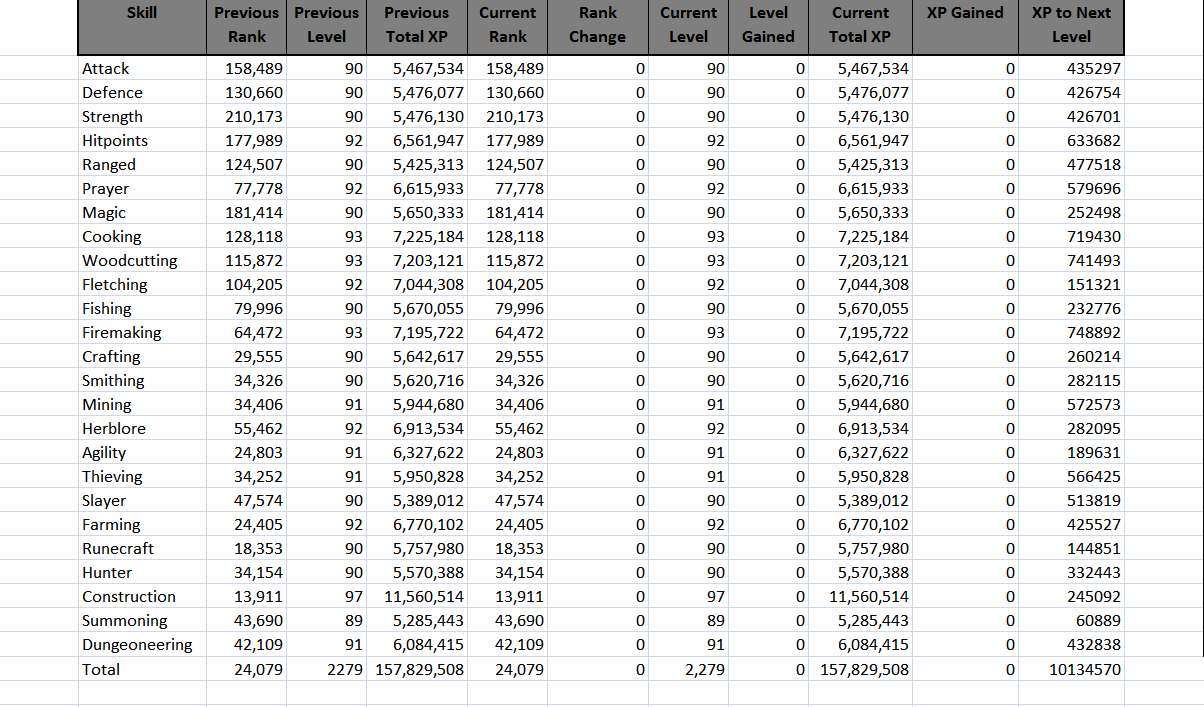
- Repeat for C2, copying the values from F2 to F29 (F27).
- Repeat for E2, copying the values from J2 to J29 (F27).
Please click the image for a full-sized view.
There is an obvious limitation here. You would have to remember to transfer your data before you started playing. The second two options will do it automatically.
Option two: Stealing the Data from Elsewhere.
The internet is full of websites which track your Runescape Hiscores data on-line. Part four was all about taking data off the internet and inserting it into your Excel spreadsheet.
Your latest quest is to find a website that tracks your daily history. One such site is Runetrack. You could set up an account there and then insert the information off that webpage into your Excel data sheet.
Once you have the data, then it's merely a case of asking your table to automatically update. You can do that by inserting the formula: =[nameofyourdataworksheet]![celltoread]
The benefits are obvious. The whole table again automatically updates, so if you forget to tranfer your data, it doesn't matter. Your previous stats update, whenever the previous stats on the website update.
However, this isn't really fair on the individuals, like the coders and owners of sites like Runetrack. They've put in the hard work and you're reaping the benefits daily, without going near their site again.
Also should Runetrack's Sword Kill11 (or one of his counterparts from another Runescape hiscores tracking site) decide to close down, your Excel tracker will simply stop working.
Option three is to use a macro to automatically copy your data at a set time every day. I'll be coming to macros in a later guide, so I'll see you there for this one.
Finishing off your Runescape Daily XP Tracker in Excel
Once you have the data in there, and it's all working nicely, then all that remains is to make it pretty.
- Highlight columns C, D and E by clicking the letter at the top.
- Right-click anywhere in the highlighted columns.
- Select 'hide'.
- Colour and format the remaining table.
Because we have some moving data here, we can spruce it up with some more icon sets. I walked you through this in part three. But I'll show you how I'm going to add some to this table too.
- Highlight cells G2 to G29 (G27).
- Select 'Conditional Formatting' from the 'Home' tab at the top of your Excel workbook.
- Select 'Icon Sets' from the menu.
- Select '3 Arrows (Coloured)' from the options.
- Highlight cells G2 to G29 (G27) again.
- Select 'Conditional Formatting'.
- Select 'Manage Rules' from the bottom of the menu.
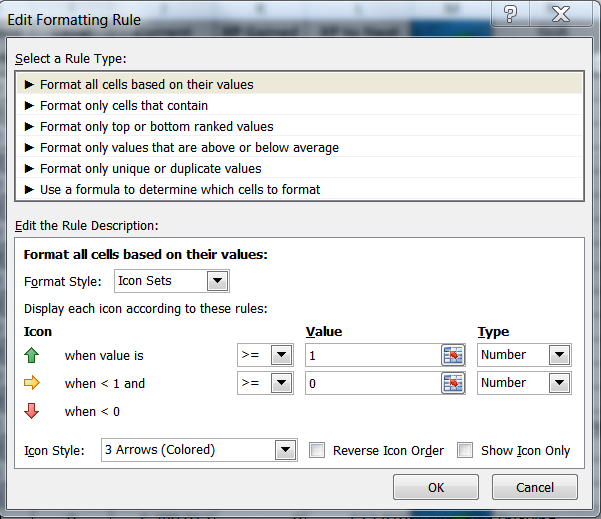
- Click 'Edit Rule'.
- Set the green arrow type to 'Number'.
- Set the value as 1.
- Set the yellow arrow type to 'Number'.
- Set the value as 0.
- Press Ok.
- Press Apply.
- Press Ok.
Just repeat that for I2 to I29 (I27) and K2 to K27 (K29) and you're all done.
Here is how my worksheet now looks:
Please click image for a full-sized view.
Next time, we will finally get around to adding some macros.
Labels:
Computer,
Gaming,
Internet,
Programmes,
Software,
Technology
Thursday, 8 December 2011
Part 4: Adding Activity Logs and More to your Runescape Excel Hiscores Tracker
Welcome to my series on creating your own Runescape Hiscores Tracker in Microsoft Office Excel. This time, we will be looking at how to add player Activity Logs and more.
For those just joining us, this guide is written in the assumption that you have already completed the first three:
Now it's on to grabbing more data and creating a chart to show off your latest Runescape achievements.
Creating Another Data Worksheet in Excel
We already have one data worksheet, but I'm going to recommend another. This is for no other reason than to keep it looking neat and tidy, especially as we're about to insert a massive chunk of automatically up-dating information.
We will be working on the Data2 sheet for the next part.
The Runescape Activity Log Data Feed in your Hiscore Tracker
The very first task that we did, in this series, was to take data from a web query. That produced Jagex's hiscore lite text feed, which was lovely, but now we're going to take this to the next level.
A mini browser will pop up. This gives you access to anywhere on the web, which will prove extremely useful in getting data for our Runescape Excel Hiscores Tracker.
You should now be seeing why I recommended a separate data worksheet, as the information fills the page. This works on any RSS feed, so do experiment with adding in any that you think will be useful. It will automatically update as soon as you log out of the game or, more specifically, as soon as the Activity Log updates on the Runescape site.
Displaying your Runescape Activity Log in Excel
The beauty of Microsoft Office Excel is that it allows you to have more than one tab. I'm going to create a new page to display my Activity Log.
You should now have all your Activity Log handily showing in your Runescape Hiscores Tracker. You will not need to touch that data again, so let's make the page go away.
All that remains now is to colour, format and do whatever else you would like to make your Activity log look pretty. These techniques have been walked through before, so I won't repeat them here.
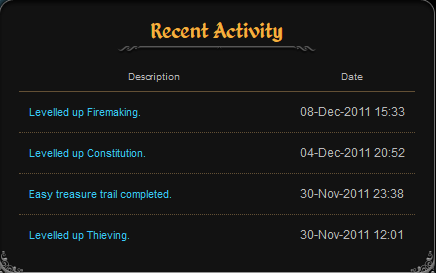
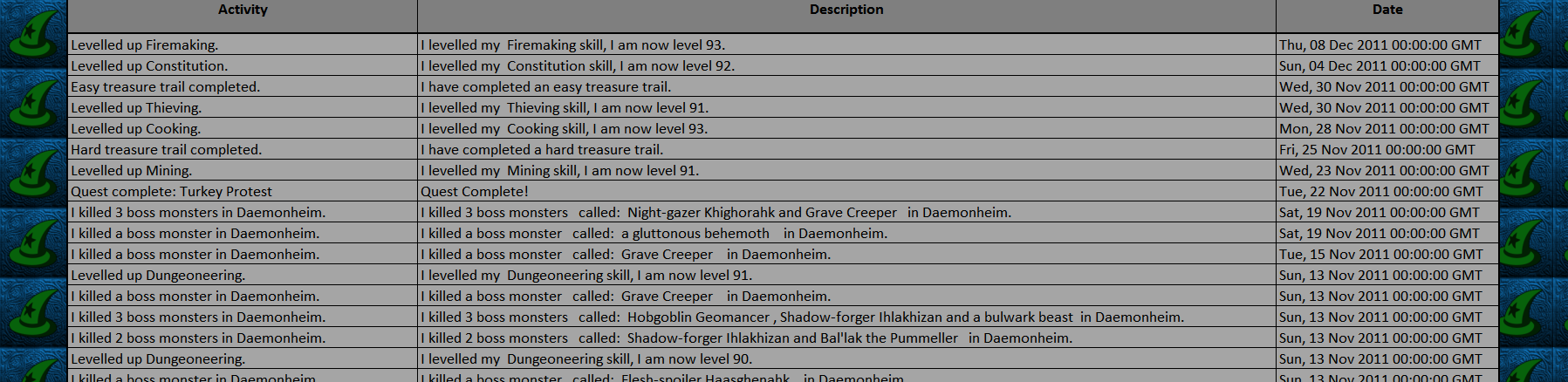
My Activity Log now looks like this:
Click the image for a full-sized view.
An Alternative Way of Adding Activity Log Data to your Hiscores Tracker
We've added text lite and RSS feeds from the web, but we can also insert the information from whole web-pages. As that updates, then so will the raw version in your Excel workbook.
A lot of raw data will be copied into your Excel worksheet. It doesn't look like the webpage that you nicked it off, but it will update as that page does. By scrolling down and comparing the two, you will see what data you have. Anything can be taken from this worksheet and added to a table in the usual way.
Creating a Small Runescape Activity Log Tracker from Website Data
As this isn't the full RSS feed, the number of activities is much reduced. We want a table with three columns and five rows.
Just a refresher for those unfamiliar with that formula. It is basically an address. 'Data3' is the name of the worksheet; A292 is the cell that from which we wish to copy the contents.
Website Data and Tables for your Runescape Hiscores Tracker
The main point that I wished to demonstrate, with the last table, was that you can take disparate cells and put them together to make your own charts. The sprawl of data that you took from the Runescape Activity Log webpage has plenty more opportunities to feed tables.
For example, you could add another column to your XP to the Next Level table, by altering that formula to read the data telling you the percentage of a Level completed. That's listed in the Data3 worksheet. Just find the cell letter and number, then add it to =Data3! and paste it in.
This works with every webpage out there, so happy hunting for things to add to your Runescape Excel Hiscores Tracker!
Next time we will be looking at ways to track your daily XP gains.
For those just joining us, this guide is written in the assumption that you have already completed the first three:
Part 1: How to Make a Runescape Hiscores Tracker in Microsoft Office Excel - Collecting data ready to feed your tables and charts.
Part 2: Averages Table in your Runescape Excel Hiscores Tracker - Creating the first table, which worked out your XP averages from highest to lowest skill. There was also a bonus section answering some formatting questions, mostly from those new to Excel.
Part 3: Calculating XP to Next Level in your Runescape Excel Hiscores Tracker - Creating a table to calculate the XP needed until your next level.
Now it's on to grabbing more data and creating a chart to show off your latest Runescape achievements.
Creating Another Data Worksheet in Excel
We already have one data worksheet, but I'm going to recommend another. This is for no other reason than to keep it looking neat and tidy, especially as we're about to insert a massive chunk of automatically up-dating information.
- Right-click the 'Sheet3' tab at the foot of your Excel workbook.
- Select 'Rename'.
- Type 'Data2' and press enter.
- Left-click the 'Data2' tab and drag it in between your other two tabs.
We will be working on the Data2 sheet for the next part.
The Runescape Activity Log Data Feed in your Hiscore Tracker
The very first task that we did, in this series, was to take data from a web query. That produced Jagex's hiscore lite text feed, which was lovely, but now we're going to take this to the next level.
- From Excel's top toolbar tab, select 'Data'.
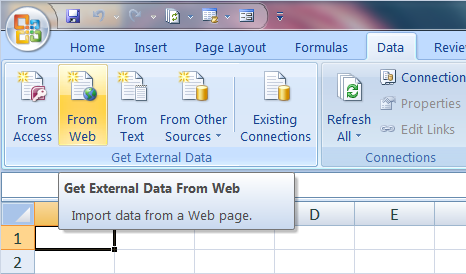
- Select 'From Web' from the 'Get External Data' category.
A mini browser will pop up. This gives you access to anywhere on the web, which will prove extremely useful in getting data for our Runescape Excel Hiscores Tracker.
- Copy this URL: http://services.runescape.com/m=adventurers-log/rssfeed?searchName=[player name]
- Paste it into the address bar of the pop up browser.
- Change [player name] to your own Runescape name. (Mine is http://services.runescape.com/m=adventurers-log/rssfeed?searchName=Merch Gwyar.)
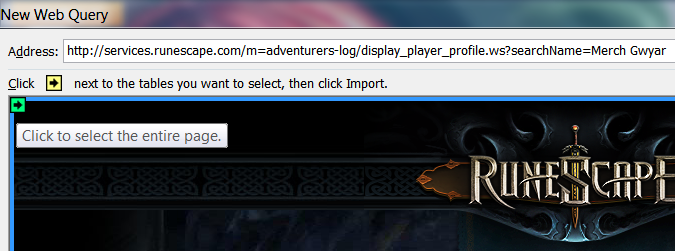
- Click the little yellow and black square to highlight the contents of the browser.
- Press 'Import' at the bottom.
- Excel will tell you that the XML source does not refer to a schema. We don't care. Press OK.
- Press OK on the Import Data box. (But only if it's got 'XML table in existing worksheet' ticked for the cell $A$1.
You should now be seeing why I recommended a separate data worksheet, as the information fills the page. This works on any RSS feed, so do experiment with adding in any that you think will be useful. It will automatically update as soon as you log out of the game or, more specifically, as soon as the Activity Log updates on the Runescape site.
Displaying your Runescape Activity Log in Excel
The beauty of Microsoft Office Excel is that it allows you to have more than one tab. I'm going to create a new page to display my Activity Log.
- At the foot of your workbook, click the final tab. (It has an icon of a worksheet with a little gold star in the corner.)
- Rename 'Sheet4' to read 'Activity Log' (or the name of your choice).
- Click cell A1 and type 'Activity'.
- Click cell B1 and type 'Description'.
- Click cell C1 and type 'Date'.
- Copy and paste the following formula into cell A2:
=Data2!K2 - Drag that formula down to cell A51.
- Widen column A, so it easily displays the information.
- Copy and paste the following formula into cell B2:
=Data2!L2 - Drag the formula down to cell B51.
- Widen the B column to fit the information.
- Repeat the process in C2, but with the following formula:
=Data2!N2
You should now have all your Activity Log handily showing in your Runescape Hiscores Tracker. You will not need to touch that data again, so let's make the page go away.
- Right-click the 'Data2' tab.
- Select 'hide'.
All that remains now is to colour, format and do whatever else you would like to make your Activity log look pretty. These techniques have been walked through before, so I won't repeat them here.
My Activity Log now looks like this:
Click the image for a full-sized view.
An Alternative Way of Adding Activity Log Data to your Hiscores Tracker
We've added text lite and RSS feeds from the web, but we can also insert the information from whole web-pages. As that updates, then so will the raw version in your Excel workbook.
- Create a new worksheet.
- Name it 'Data3' and drag the tab to a position after your main datasheet.
- From Excel's top toolbar tab, select 'Data'.
- Select 'From Web' from the 'Get External Data' category.
- Copy and paste the following URL into the address bar of the pop-up brower:
http://services.runescape.com/m=adventurers-log/display_player_profile.ws?searchName=[player name] - Replace [player name] with your Runescape name. (My URL is: http://services.runescape.com/m=adventurers-log/display_player_profile.ws?searchName=Merch Gwyar.)
- Click the yellow and black box to highlight the whole page.
- Press the 'Import' button.
- Press OK on the pop up 'Import Data' box. (But only if 'Existing Worksheet' is selected and =$A$1 is the cell named in the box.)
A lot of raw data will be copied into your Excel worksheet. It doesn't look like the webpage that you nicked it off, but it will update as that page does. By scrolling down and comparing the two, you will see what data you have. Anything can be taken from this worksheet and added to a table in the usual way.
Creating a Small Runescape Activity Log Tracker from Website Data
As this isn't the full RSS feed, the number of activities is much reduced. We want a table with three columns and five rows.
- Chose where you wish to place it and create that table.
- Colour it in, then format it with borders.
- Type 'Activity', 'Description' and 'Date' in the cells heading each column. These are the headers.
- In the cell under the 'Activity' header, copy and paste this formula:
=Data3!A292
Just a refresher for those unfamiliar with that formula. It is basically an address. 'Data3' is the name of the worksheet; A292 is the cell that from which we wish to copy the contents.
- In the cell under the 'Description' header, copy and paste this formula:
=Data3!A293 - In the cell under the 'Date' header, copy and paste this formula:
=Data3!B292 - Repeat this for the next row, using these three formulas in each consecutive cell:
=Data3!A294
=Data3!A295
=Data3!B294 - Repeat this for the third activity row, using these three formulas:
=Data3!A296
=Data3!A297
=Data3!B296 - Repeat this for the final row, using these three formulas:
=Data3!A298
=Data3!A299
=Data3!B298
- Hide the 'Data3' worksheet.
Website Data and Tables for your Runescape Hiscores Tracker
The main point that I wished to demonstrate, with the last table, was that you can take disparate cells and put them together to make your own charts. The sprawl of data that you took from the Runescape Activity Log webpage has plenty more opportunities to feed tables.
For example, you could add another column to your XP to the Next Level table, by altering that formula to read the data telling you the percentage of a Level completed. That's listed in the Data3 worksheet. Just find the cell letter and number, then add it to =Data3! and paste it in.
This works with every webpage out there, so happy hunting for things to add to your Runescape Excel Hiscores Tracker!
Next time we will be looking at ways to track your daily XP gains.
Labels:
Computer,
Gaming,
Internet,
Programmes,
Software,
Technology
Wednesday, 7 December 2011
Part 3: Calculating XP to Next Level in your Runescape Excel Hiscores Tracker
Welcome to my series on making a Runescape Hiscores Tracker in Microsoft Office Excel. Once set up, this spreadsheet will automatically update each time you log out of the game.
So far, we've grabbed some data, then made a chart to work out the average of the whole for each skill. In a bonus section to part two, I answered some questions about formatting.
This is written on the assumption that you've been following the series so far. Now let's grab some more data and create a new table. This one will automatically calculate how much XP is needed to your next level in every Runescape skill.
Runescape Excel Hiscores Tracker: Adding More Data
Before we can calculate the XP needed, we need to know the amount that causes you to level up. This is probably the easiest insertion of data for you, because I'm going to provide it!
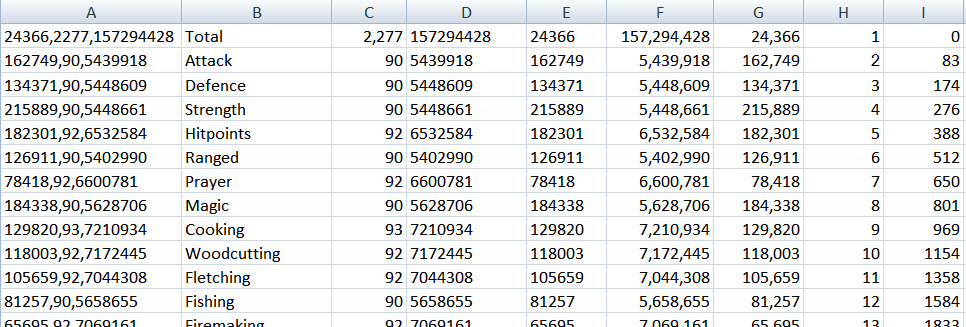
All done! My data sheet looks like this:
Runescape Hiscores Tracker: Naming Your Ranges
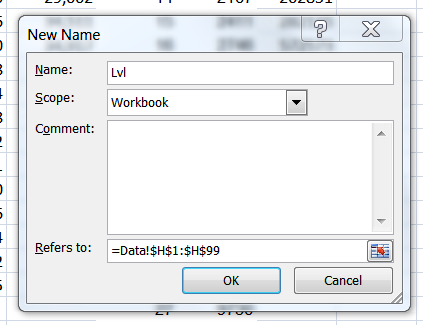
There is a formula coming up that's going to require us to name a range. We'd better do that then.
Now that our columns of information are named, we can use that in a formula that looks things up on them. This is precisely what we're going to be doing next.
Looking Up The XP to Your Next Runescape Level in Excel
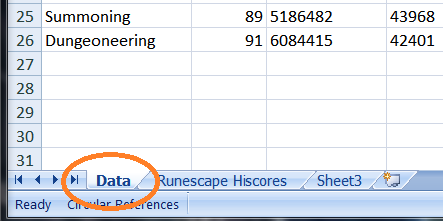
The worksheet, with all of my data in it, is imaginatively called 'Data' in my Excel workbook. It's important that you note what you called your tab, because it's going to be used in the next formula.
This is how my data sheet looks now:
We have our data all calculated. All that remains now is to format it into a pretty table.
Creating a Table Charting the Experience Remaining
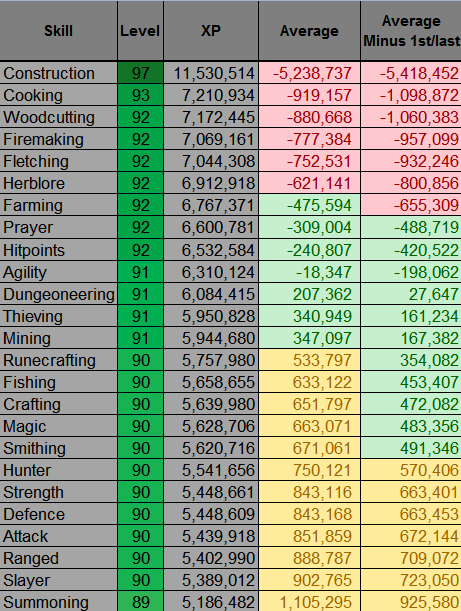
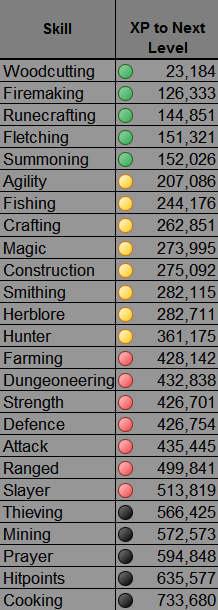
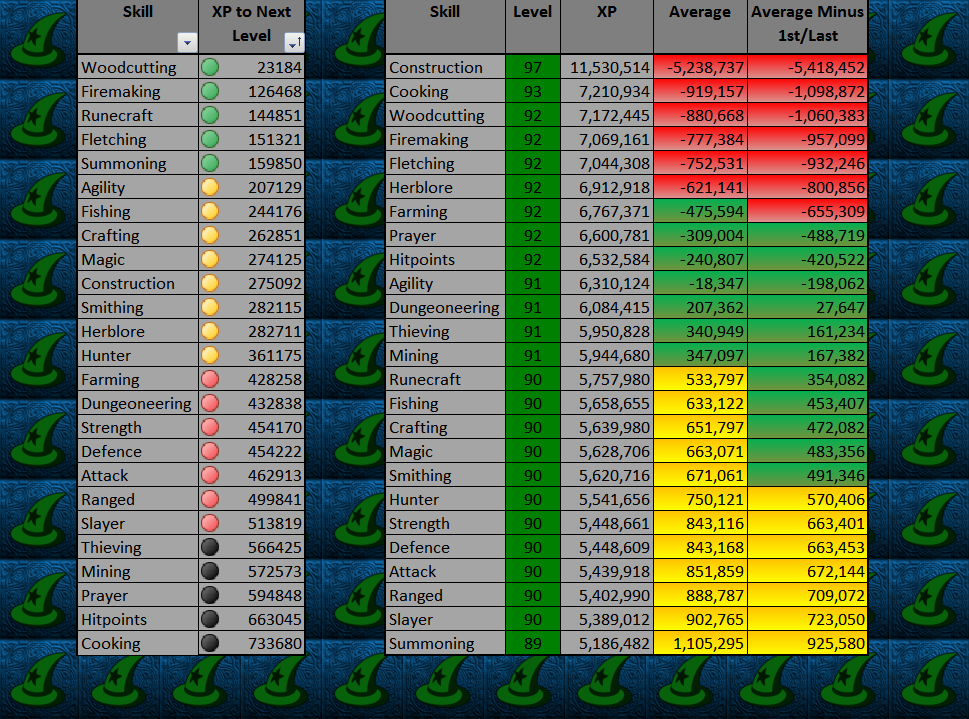
I'm going to walk you through creating a table that looks like this:
Obviously, you might want to add your own artistry to it. Please do feel free to colour and decorate it as you wish!
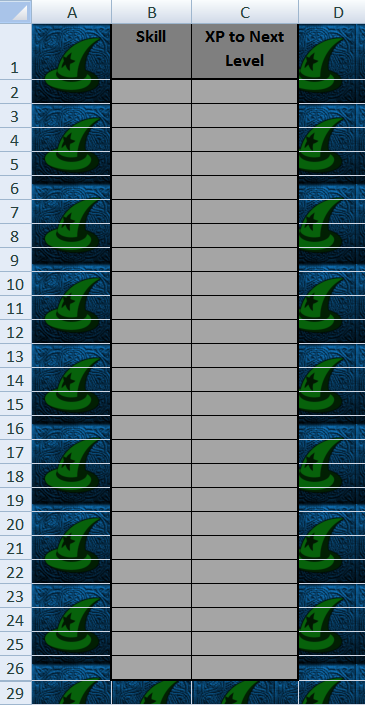
Open up your main worksheet, where you last created the Averages table. Mine is huddled up in the first five columns, so I'm going to move it along a bit.
This part is really formatting the cells to look pretty. I went through it this when we were making the Averages table, and added some more tips in the bonus blog, so please consult them.
I'm going for a light grey with full borders and gridlines.
Once it's all pretty, it's simply a case of adding a couple of formulas.
Voila! All of your information in a handy table! But I want to add a bit more decoration, just to give it a splash of colour.
There are loads of icon sets in there. If this one isn't thrilling you, then try another in the same way. But before we declare this table done, there's a big decision to make about filters.
Excel Worksheets: The Limitations of the Sort Filter
You could add a sort filter, as you did with the Averages table. Unfortunately a limitation of Excel is that you can only have one of these filters on any single worksheet. There is a work-around using macros, but that's a bigger job, so a tip for another day. For now, just decide which table you wish to have the handy button filter on. The other can be sorted manually by highlighting it and using 'sort and filter' to arrange it.
NB Do not sort the columns headed 'Average' and 'Average Minus 1st/Last', else it will lose the formatting.
I've opted to put the button filter on the XP table.
Two Runescape Hiscore Tracker Tables in Excel
There we have it. You now have two lovely and useful tables, nestled side by side on your Excel worksheet.
Next time, we'll look at how to add Activity Logs and more.
So far, we've grabbed some data, then made a chart to work out the average of the whole for each skill. In a bonus section to part two, I answered some questions about formatting.
This is written on the assumption that you've been following the series so far. Now let's grab some more data and create a new table. This one will automatically calculate how much XP is needed to your next level in every Runescape skill.
Runescape Excel Hiscores Tracker: Adding More Data
Before we can calculate the XP needed, we need to know the amount that causes you to level up. This is probably the easiest insertion of data for you, because I'm going to provide it!
- Open your Runescape Hiscores Tracker Excel Workbook.
- Select the worksheet with your raw data in it.
- Copy and paste the following in cell H1:
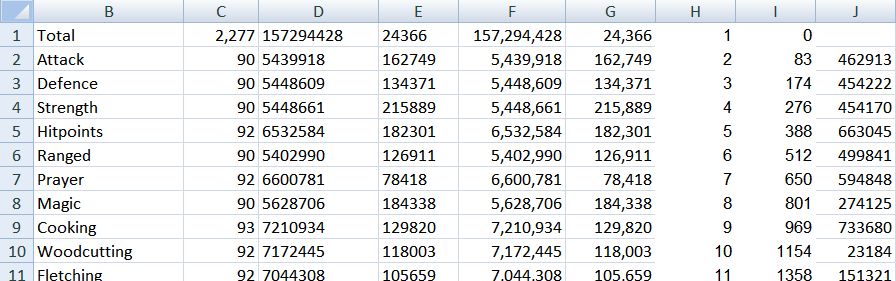
1
2
3
4
5
6
7
8
9
10
11
12
13
14
15
16
17
18
19
20
21
22
23
24
25
26
27
28
29
30
31
32
33
34
35
36
37
38
39
40
41
42
43
44
45
46
47
48
49
50
51
52
53
54
55
56
57
58
59
60
61
62
63
64
65
66
67
68
69
70
71
72
73
74
75
76
77
78
79
80
81
82
83
84
85
86
87
88
89
90
91
92
93
94
95
96
97
98
99
- Copy and paste the following in cell I1:
0
83
174
276
388
512
650
801
969
1154
1358
1584
1833
2107
2411
2746
3115
3523
3973
4470
5018
5624
6291
7028
7842
8740
9730
10824
12031
13363
14833
16456
18247
20224
22406
24815
27473
30408
33648
37224
41171
45529
50339
55649
61512
67983
75127
83014
91721
101333
111945
123660
136594
150872
166636
184040
203254
224466
247886
273742
302288
333804
368599
407015
449428
496254
547953
605032
668051
737637
814445
899257
992895
1096278
1210421
1336443
1475581
1629200
1798808
1986068
2192818
2421087
2673114
2951373
3258594
3597792
3972294
4385776
4842295
5346332
5902831
6517253
7195629
7944614
8771558
9684577
10692629
11805606
13034431
All done! My data sheet looks like this:
Runescape Hiscores Tracker: Naming Your Ranges
There is a formula coming up that's going to require us to name a range. We'd better do that then.
- Click on cell H1 (which should currently have a 1 in it).
- Drag your mouse down to H99 (which should currently have a 99 in it).
- Right-click anywhere in the highlighted area.
- Select 'Name a Range' from the pull down menu.
- Call it 'Lvl' and click 'OK'.
- Do the same for cells I1 to I99.
- Call it 'Exp'.
Now that our columns of information are named, we can use that in a formula that looks things up on them. This is precisely what we're going to be doing next.
Looking Up The XP to Your Next Runescape Level in Excel
The worksheet, with all of my data in it, is imaginatively called 'Data' in my Excel workbook. It's important that you note what you called your tab, because it's going to be used in the next formula.
- Click on cell J2.
- Copy and paste the following formula:
=IF(LOOKUP(C2+1,'Data'!Lvl,'Data'!Exp)-D2<0,0,(LOOKUP(C2+1,'Data'!Lvl,'Data'!Exp)-D2)) - Change Data to whatever you called this page. (Or leave it alone, if you called the worksheet 'Data'. :p)
- Press enter.
- Woot at the fact that the XP to your next Attack level should be revealed.
- Click on cell J2 again.
- Left-click on the tiny square in the bottom, right-hand corner of the cell.
- Drag it down to cell J26.
- Happy dance.
This is how my data sheet looks now:
We have our data all calculated. All that remains now is to format it into a pretty table.
Creating a Table Charting the Experience Remaining
I'm going to walk you through creating a table that looks like this:
Obviously, you might want to add your own artistry to it. Please do feel free to colour and decorate it as you wish!
Open up your main worksheet, where you last created the Averages table. Mine is huddled up in the first five columns, so I'm going to move it along a bit.
- Click the A to highlight the first column.
- Right-click and select 'insert'.
- Repeat that another three times.
- Click cell E1.
- Right-click and select 'copy'.
- Click cell B1.
- Right-click and select 'paste'.
- Drag that over to C1, using the little corner box.
- Click on C1.
- Type 'XP to Next Level'.
- Widen the C column, by clicking your cursor on the wall between C and D and dragging.
- Highlight the cells B2 to C26.
- Colour them in using the paint bucket.
This part is really formatting the cells to look pretty. I went through it this when we were making the Averages table, and added some more tips in the bonus blog, so please consult them.
I'm going for a light grey with full borders and gridlines.
Once it's all pretty, it's simply a case of adding a couple of formulas.
- Click on B2.
- Copy and paste this formula: =Data!B2.
- Drag the formula down to B26.
- Widen your B column, if necessary. (The word Dungeoneering will probably make it necessary.)
- Click on C2.
- Copy and paste this formula: =Data!J2.
- Drag the formula down to C26.
Voila! All of your information in a handy table! But I want to add a bit more decoration, just to give it a splash of colour.
- Highlight cells C2 to C26.
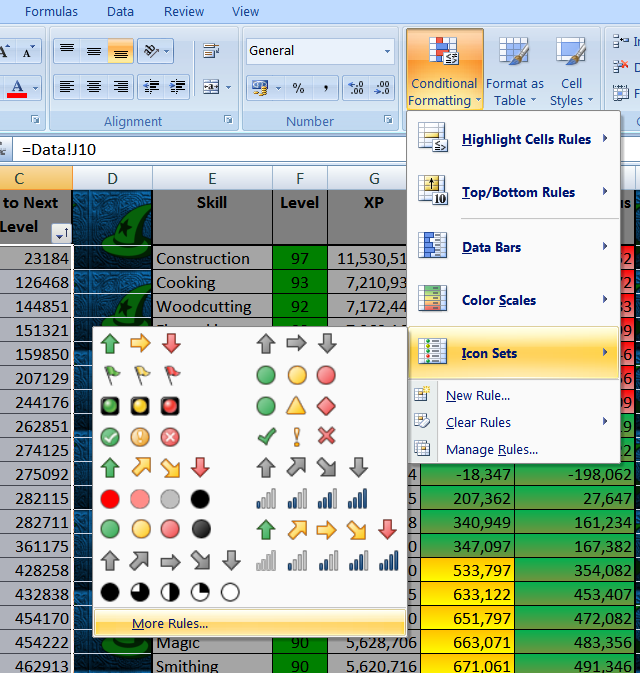
- Click on 'Conditional Formatting', in the styles section of the Home tab toolbar.
- Select 'Icon Sets'.
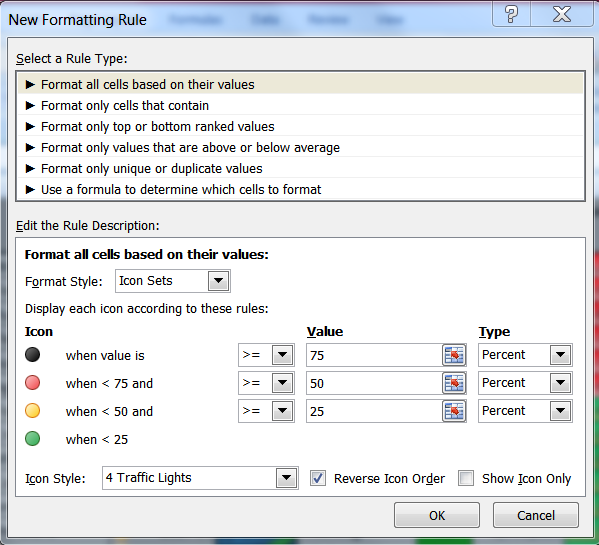
- Select 'More Rules'.
- Pull down the menu beside 'Icon Style'.
- Select '4 Traffic Lights'.
- Tick the box beside 'Reverse Icon Order'.
- Click Ok.
There are loads of icon sets in there. If this one isn't thrilling you, then try another in the same way. But before we declare this table done, there's a big decision to make about filters.
Excel Worksheets: The Limitations of the Sort Filter
You could add a sort filter, as you did with the Averages table. Unfortunately a limitation of Excel is that you can only have one of these filters on any single worksheet. There is a work-around using macros, but that's a bigger job, so a tip for another day. For now, just decide which table you wish to have the handy button filter on. The other can be sorted manually by highlighting it and using 'sort and filter' to arrange it.
NB Do not sort the columns headed 'Average' and 'Average Minus 1st/Last', else it will lose the formatting.
I've opted to put the button filter on the XP table.
Two Runescape Hiscore Tracker Tables in Excel
There we have it. You now have two lovely and useful tables, nestled side by side on your Excel worksheet.
Next time, we'll look at how to add Activity Logs and more.
Labels:
Computer,
Gaming,
Internet,
Programmes,
Software,
Technology
Saturday, 17 September 2011
The Importance of a Picture: Using Creative Commons 3 to Get the Word Out
Publicity is the key to success for any event, be it a garden fete or a mass protest in the streets of New York. But those wishing to achieve it often overlook a tiny detail - the licence designation on their photographs. For those with a controversial cause, it can make the difference between a sympathetic article reaching readers in time or negative responses too late in the day.
This is an insight into an all too common scenario, which played out this morning.
Finding an Image for #OccupyWallStreet
It was September 17th 2011. For weeks the social networking feeds had been buzzing with the Adbuster arranged activism that was taking place this day. Anonymous were on board, as were US Day of Rage and other groups. There were publicity posters, leaflets, photographs and other images all over the internet. Many were produced by hacktivists with the full implication that they could be reused by whomever had such inclination.
As a journalist and a writer for Suite101, I set out to produce an article. I wanted it to published well before noon GMT, the proposed time that the protest was taking place. There was method in my madness. When ordinary New Yorkers stumbled across the event, they would want information. I wanted my article to be ready and waiting, in Google News, for just an occurance.
But there was a problem. Not one of the mass of images on the internet specially carried a Creative Commons 3 licence. This allows for commercial reuse and Suite101, mindful of law suits, demands it. They have advertisements on the site, which counts as commercialisation. Without an image, my article could not be published.
The Devil is in the Detail
There is an old adage, purportedly from the Battle of Bosworth and Richard III's alleged cry, 'My kingdom for a horse.' (Historically inaccurate; Shakespeare made it up.) It goes: 'For want of a nail, the shoe was lost. For want of a shoe, the horse was lost. For want of a horse, the kingdom was lost.' It felt like a very apt saying this morning.
I've been here before. I've had articles in mind, then searched for an image, as I know I'll need one. There aren't any with the status, 'for commercial reuse', so I don't bother with the article. I move on to something that I can illustrate. But I felt that the occupation of Wall Street was important. I wanted to write about this.
For the best part of an hour, I searched websites and blogs for that all important Creative Commons 3 tag. None of them included it. It was seen as implicit that the images could be used. My editor wasn't going to see it that way. All the time, the clock was ticking. The protest would have started before I got this up. In desperation, I Tweeted owners of likely images. They weren't online.
Meanwhile, news articles were starting to spring up. They were from mainstream news outlets, like Fox and CNN, who could afford to have photographers on the scene. Small indpendents, like myself, are so reliant on participants. We don't have the big business funding that they have, to use in our coverage of anti-big business protests.
Educating Anonymous and Sourcing an Image
Fortunately, I did have one more avenue to try. After having now wasted an hour on trying to source an image, I decided to be cheeky. A few days ago, AnonCMD had sent me a link for an Anonymous IRC Channel. It was meant to be used to interview AnonCMD about RefRef, but they didn't show up. I used the same link now, in the hope that other members of Anonymous were around. After all, these hacktivists were responsible for half of the pictures I'd found.
True to their nature, the resulting conversation was placed in Pastebin by Anonymous. After hearing me out, one of them then took my favoured image and stuck a notice on it: 'for commercial reuse'. I had my illustration!
However, it had taken so long to find, that I was now just an hour away from the start of the protest. I wrote and researched fast. It wasn't quite as well crafted as it might have been, if I had twice the time in which to pen it.
Publicising the Protest with a Picture and an Article
My article went live at ten minutes past noon. Anonymous Amongst Protestors in Occupy Wall Street Demonstration carried with it the image kindly created for me by a member of Anonymous.
The timing (and the fact that Anonymous subsequently Tweeted it through dozens of their channels) was critical. For a start, it pushed my article to the top of those listed in Google News, above heavyweights like CNN and the Huffington Post:
In short, it was the first option available for ordinary people searching for news about the protest in Wall Street; and it was sympathetic to the demonstration.
Moreover, within minutes, it had been collected by the New York Daily News, a Paper.li, edition. It was featured, because it had an image.
So mine was the version of events that New Yorkers were reading on Paper.li. Just an hour and half after the article was published, it has been already been read by 551 people.
What Can People do to Facilitate These Kind of News Stories
Bear in mind that journalists like myself are bound by the rules of our publishers. We can't put articles out without images; and we need somewhere to prove to our editors that the images are 'for commercial reuse'.
When putting out pictures, all that is required is a simple line beneath them, or somewhere in the blog entry: 'This content/image/photo/poster is licenced under Creative Commons [add which one]'. For commercial reuse, the following are applicable:
Creative Commons Attribution 3.0 Unported (CC BY 3.0)
Creative Commons Attribution-ShareAlike 3.0 Unported (CC BY-SA 3.0)
Creative Commons Attribution-NoDerivs 3.0 Unported (CC BY-ND 3.0)
Just find the one you prefer, then link it somewhere in the vicinity of the images that can be used. It doesn't necessarily have to be in the picture itself, as we can link back to the source for the licence attribution.
Finally, thank you very much to the good people of Anonymous, who took the time to create an image for me this morning. Good luck with the #OccupyWallStreet demonstration.
This is an insight into an all too common scenario, which played out this morning.
Finding an Image for #OccupyWallStreet
It was September 17th 2011. For weeks the social networking feeds had been buzzing with the Adbuster arranged activism that was taking place this day. Anonymous were on board, as were US Day of Rage and other groups. There were publicity posters, leaflets, photographs and other images all over the internet. Many were produced by hacktivists with the full implication that they could be reused by whomever had such inclination.
As a journalist and a writer for Suite101, I set out to produce an article. I wanted it to published well before noon GMT, the proposed time that the protest was taking place. There was method in my madness. When ordinary New Yorkers stumbled across the event, they would want information. I wanted my article to be ready and waiting, in Google News, for just an occurance.
But there was a problem. Not one of the mass of images on the internet specially carried a Creative Commons 3 licence. This allows for commercial reuse and Suite101, mindful of law suits, demands it. They have advertisements on the site, which counts as commercialisation. Without an image, my article could not be published.
The Devil is in the Detail
There is an old adage, purportedly from the Battle of Bosworth and Richard III's alleged cry, 'My kingdom for a horse.' (Historically inaccurate; Shakespeare made it up.) It goes: 'For want of a nail, the shoe was lost. For want of a shoe, the horse was lost. For want of a horse, the kingdom was lost.' It felt like a very apt saying this morning.
I've been here before. I've had articles in mind, then searched for an image, as I know I'll need one. There aren't any with the status, 'for commercial reuse', so I don't bother with the article. I move on to something that I can illustrate. But I felt that the occupation of Wall Street was important. I wanted to write about this.
For the best part of an hour, I searched websites and blogs for that all important Creative Commons 3 tag. None of them included it. It was seen as implicit that the images could be used. My editor wasn't going to see it that way. All the time, the clock was ticking. The protest would have started before I got this up. In desperation, I Tweeted owners of likely images. They weren't online.
Meanwhile, news articles were starting to spring up. They were from mainstream news outlets, like Fox and CNN, who could afford to have photographers on the scene. Small indpendents, like myself, are so reliant on participants. We don't have the big business funding that they have, to use in our coverage of anti-big business protests.
Educating Anonymous and Sourcing an Image
Fortunately, I did have one more avenue to try. After having now wasted an hour on trying to source an image, I decided to be cheeky. A few days ago, AnonCMD had sent me a link for an Anonymous IRC Channel. It was meant to be used to interview AnonCMD about RefRef, but they didn't show up. I used the same link now, in the hope that other members of Anonymous were around. After all, these hacktivists were responsible for half of the pictures I'd found.
True to their nature, the resulting conversation was placed in Pastebin by Anonymous. After hearing me out, one of them then took my favoured image and stuck a notice on it: 'for commercial reuse'. I had my illustration!
However, it had taken so long to find, that I was now just an hour away from the start of the protest. I wrote and researched fast. It wasn't quite as well crafted as it might have been, if I had twice the time in which to pen it.
Publicising the Protest with a Picture and an Article
My article went live at ten minutes past noon. Anonymous Amongst Protestors in Occupy Wall Street Demonstration carried with it the image kindly created for me by a member of Anonymous.
The timing (and the fact that Anonymous subsequently Tweeted it through dozens of their channels) was critical. For a start, it pushed my article to the top of those listed in Google News, above heavyweights like CNN and the Huffington Post:
In short, it was the first option available for ordinary people searching for news about the protest in Wall Street; and it was sympathetic to the demonstration.
Moreover, within minutes, it had been collected by the New York Daily News, a Paper.li, edition. It was featured, because it had an image.
So mine was the version of events that New Yorkers were reading on Paper.li. Just an hour and half after the article was published, it has been already been read by 551 people.
What Can People do to Facilitate These Kind of News Stories
Bear in mind that journalists like myself are bound by the rules of our publishers. We can't put articles out without images; and we need somewhere to prove to our editors that the images are 'for commercial reuse'.
When putting out pictures, all that is required is a simple line beneath them, or somewhere in the blog entry: 'This content/image/photo/poster is licenced under Creative Commons [add which one]'. For commercial reuse, the following are applicable:
Creative Commons Attribution 3.0 Unported (CC BY 3.0)
Creative Commons Attribution-ShareAlike 3.0 Unported (CC BY-SA 3.0)
Creative Commons Attribution-NoDerivs 3.0 Unported (CC BY-ND 3.0)
Just find the one you prefer, then link it somewhere in the vicinity of the images that can be used. It doesn't necessarily have to be in the picture itself, as we can link back to the source for the licence attribution.
Finally, thank you very much to the good people of Anonymous, who took the time to create an image for me this morning. Good luck with the #OccupyWallStreet demonstration.
Tuesday, 2 August 2011
Subscribe to:
Posts (Atom)